Custom Summary
Generate summaries tailored to specific time periods and topics that matter to you. Custom Summary gives you full control over what gets summarized—select time ranges from your Pieces Timeline events and optionally add a focus to narrow your summary further.
Click the `Custom Summary` card on the homepage. If it's not visible, tap `Discover More` to view all single-click summary options, then select `Custom Summary`.
Set your scoping: choose a **Time Range** (e.g., last 24 hours, this week, last week), optionally scope to **Signals** (detected projects), **Applications** (VS Code, Chrome, Slack, etc.), or **Websites** to narrow the focus. Combine multiple dimensions for precise results.
Give your summary a name, pick a color, and choose an icon. This helps you recognize it at a glance when it appears in your summary library.
Tap `Save` to store your configuration as a reusable template. Once saved, your template lives alongside built-in options like Morning Brief and Day Recap—trigger it with a single click whenever you need it, with no reconfiguration.
Click `Generate` to start creating your custom summary.
Pro tip: If you generate the same kind of summary more than twice (e.g., weekly client updates, sprint retros), save it as a template. Build it once, use it forever.
Discover
Access additional summary options and request new summary types through Discover. Click the Discover summary card to open a popup displaying available summary options—you'll see the standard summary types plus additional options you haven't encountered yet, expanding your choices for generating insights.
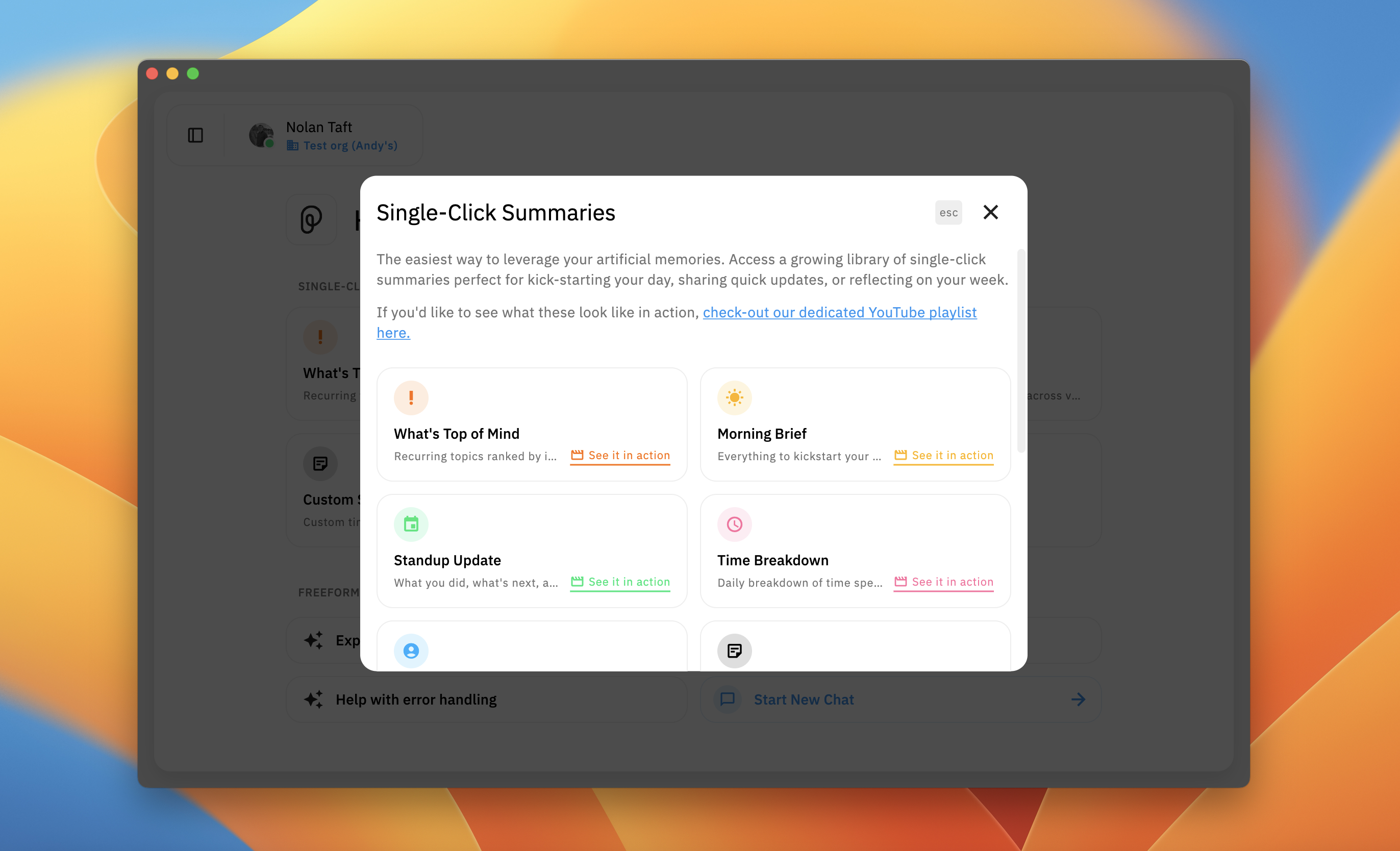
Discover popup showing available summary options including Request a Summary
Requesting a New Summary Type
Suggest new summary types to help shape future Single-Click Summary options. From the Discover popup, select Request a Summary to open a form where you can describe what you need.
Click the `Discover` summary card on the homepage.
In the Discover popup, select `Request a Summary`.
Type an artifact name (up to 50 characters) describing the summary type you want.
Enter a description (up to 500 characters) explaining what this artifact should do and how it would help you.
Click `Submit Request` to send your suggestion to the Pieces team.
Request a Summary popup with Artifact Name and Description fields, and Submit Request button
Want summaries to run on a schedule? See Scheduling.