Expanding & Collapsing | Pieces Timeline
Learn how to navigate Pieces Timeline by expanding and collapsing day groups, jumping to events, and browsing activity items.
Expanding & Collapsing
Events in Pieces Timeline are automatically grouped by day, making it easy to find activities from specific time periods. Each group can be expanded or collapsed to control what you see.
Understanding Day Groups
Events are organized into collapsible groups labeled by date:
- Today - Events from the current day
- Yesterday - Events from the previous day
- [Date] - Older events grouped by specific dates (e.g., "Jan 14th")
Each group header displays the date and a count of events in that group (e.g., "Today, Jan 15th (2)").
Expanding and Collapsing Groups
Understanding Activity Items
Each item in Timeline Events contains information about a specific captured activity or conversation from your workflow.
Each memory item displays:
- Title/Description: A concise summary of the activity (e.g., "Desktop App Documentation Updates", "SDK, Docs, & Work Ledger").
- Timestamp: When the activity occurred (e.g., "10 minutes ago - 2:24pm", "Half an hour ago - 2:04pm").
- Date Group: Memories are grouped by date (Today, Yesterday, Last Saturday, etc.).
- Icon Indicators: Visual indicators showing the type of activity or associated apps.
- App Icons: Small icons showing which applications were involved (Chrome, VS Code, Slack, etc.).
- Count Badge: Number on the right indicating how many events or items are in that memory.
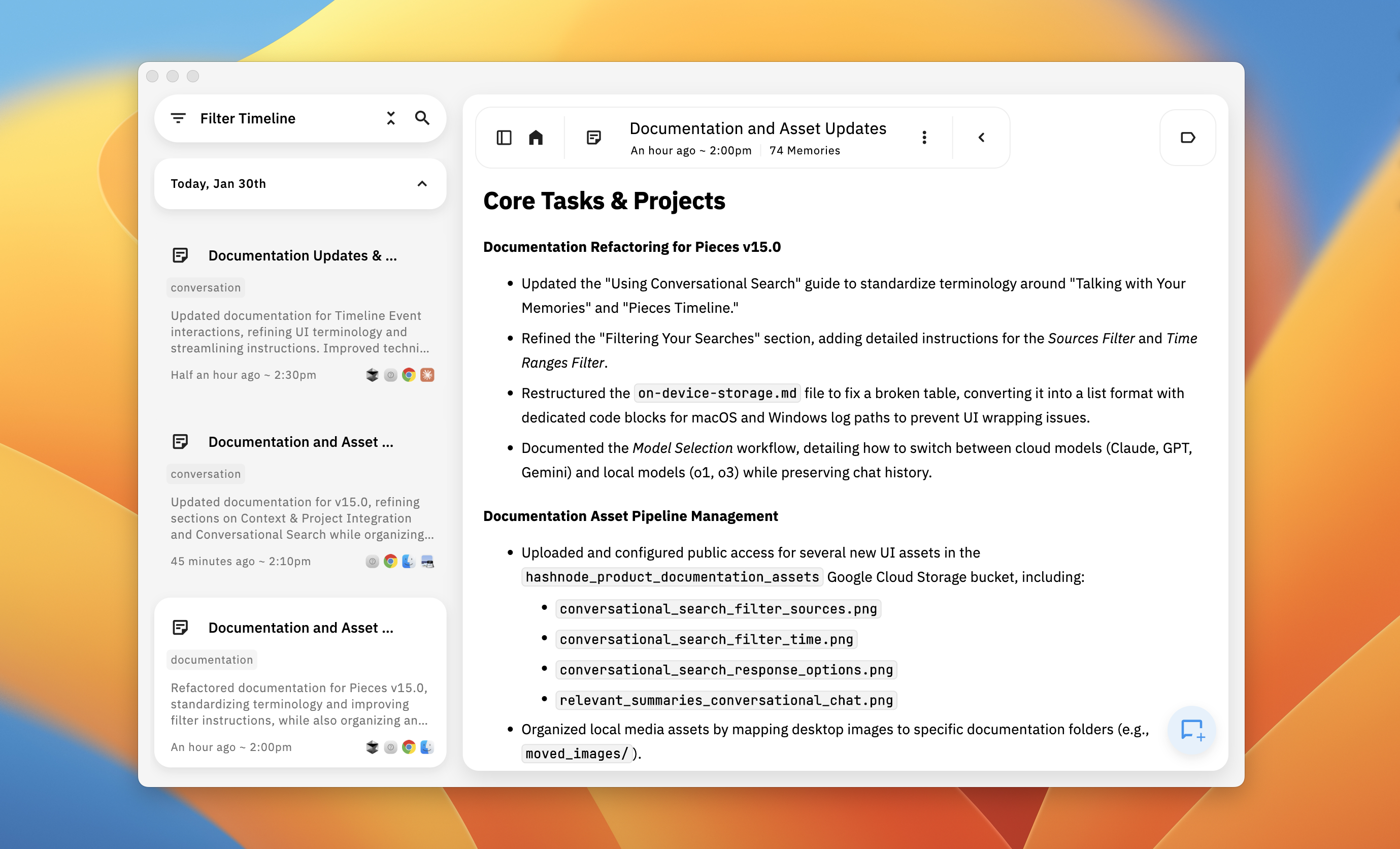
Showing current day dropdown in Timeline
Jump to Summary in Timeline
Quickly navigate to a specific event's position in the Timeline sidebar when viewing its content.

Pieces Timeline showing day groups (Today expanded, Yesterday collapsed) with event counts, and
Jump to Summary in Timelinebutton visible in header
Activity Retention
LTM-2.7 retains your captured workflow context for up to 9 months. Activities older than 9 months are automatically removed to ensure optimal performance.
Next Steps
Now that you know how to navigate Timeline, learn how to filter events to find exactly what you need.