Views & Layouts Settings
Customize confirmation settings, metrics summary display, and saved materials toolbar preferences. Configure when confirmation prompts appear, how metrics summaries are displayed, and which toolbar options are available for saved materials.
To access Views & Layouts settings, click your User Profile in the top left, then hover over Settings and select Views & Layouts.

Views & Layouts settings showing Confirmation Settings, Metrics Summary Settings, and Default Toolbar options
Confirmation Settings
Configure which confirmation menus appear when performing deletions or updates. Confirmation prompts help protect you from unintended actions by requiring an extra step before making significant changes.
Opening Confirmation Settings
Click your `User Profile` in the top left, then hover over `Settings` and select `Views & Layouts`.
In the *Views & Layouts* section, find the "Confirmation Settings" option with the description "Select which confirmation menus show or not".
Click the `Settings Icon` (gear icon) to the right of the Confirmation Settings option to open the *Confirmation Menu Settings* popup.
Confirmation Menu Settings popup showing Deletions and Updates sections with checkboxes
Deletions
Configure confirmation prompts for various deletion actions. When enabled, Pieces will ask for confirmation before permanently deleting items.
Click the `Settings Icon` next to Confirmation Settings in Views & Layouts.
In the *Confirmation Menu Settings* popup, find the *Deletions* section.
Enable or disable confirmation prompts for:
* **Confirm Saved Material deletions**: Check the checkbox to require confirmation before deleting saved materials
* **Confirm Timeline Event deletions**: Check the checkbox to require confirmation before deleting Timeline Events
* **Confirm Saved Material Context deletions**: Check the checkbox to require confirmation before deleting context (tags, related links, and more). Click the `Dropdown Arrow` to access additional context deletion options
Updates
Configure confirmation prompts for shareable link updates. When enabled, Pieces will prompt you before updating shareable links when modifying saved materials.
Click the `Settings Icon` next to Confirmation Settings in Views & Layouts.
In the *Confirmation Menu Settings* popup, find the *Updates* section.
Enable or disable confirmation prompts for:
* **Confirm Shareable Link updates**: Check the checkbox to prompt you to update your shareable link when updating a Saved Material
* **Confirm Sensitive Shareable Link updates**: Check the checkbox to prompt you to update shareable links that have sensitive information when updating a Saved Material
Updates section showing Shareable Link update confirmation options
Metrics Summary Settings
Customize when and how the Metrics Summary displays in Gallery View. Control the visibility of context summaries to keep your interface clean while still providing information when needed.
Opening Metrics Summary Settings
Click your `User Profile` in the top left, then hover over `Settings` and select `Views & Layouts`.
In the *Views & Layouts* section, find the "Metrics Summary Settings" option with the description "Customize when the Metrics Summary shows".
Click the `Hamburger Icon` (three horizontal lines) to the right of the Metrics Summary Settings option to open the *Metrics Settings* popup.
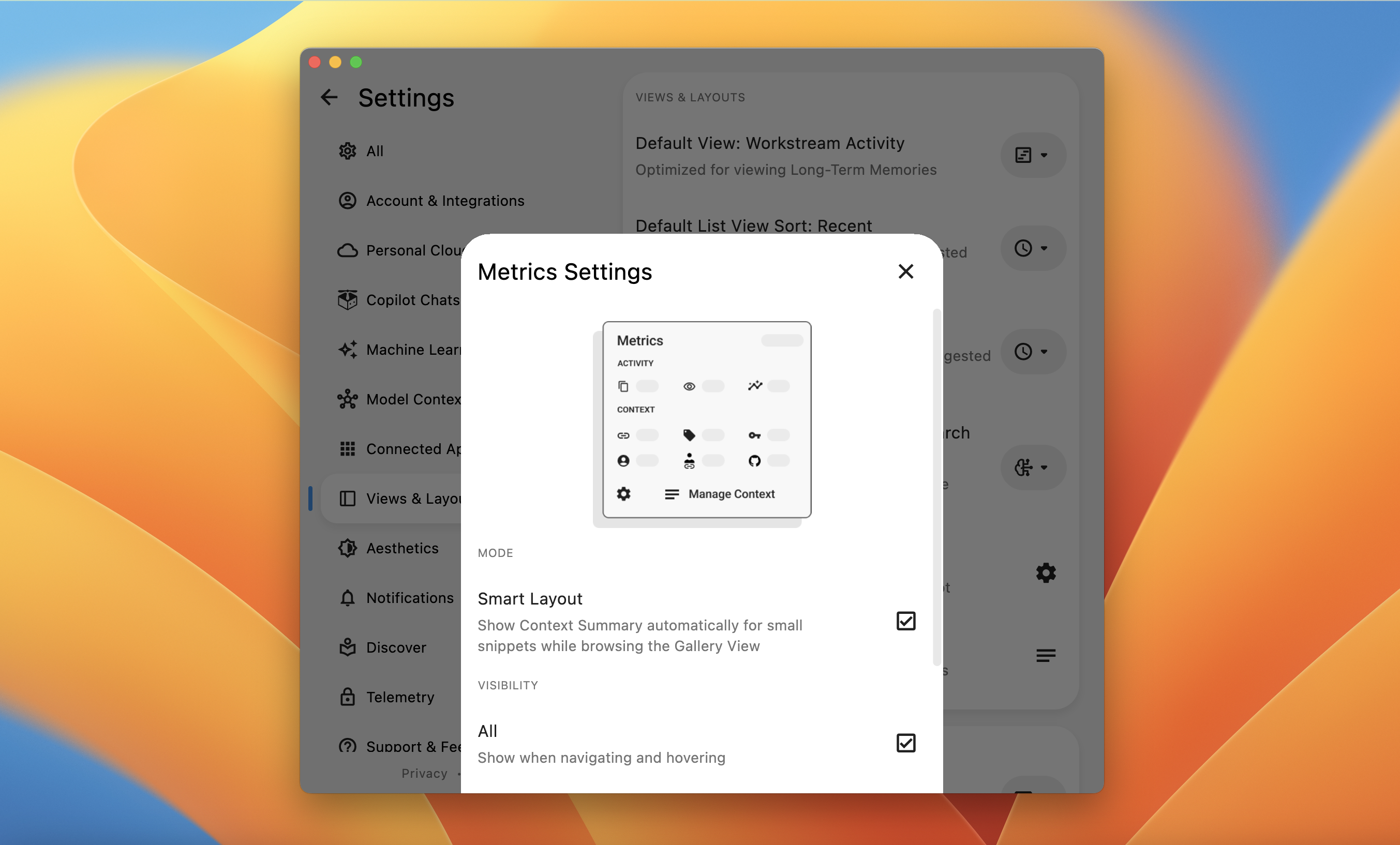
Metrics Settings popup showing Mode and Visibility options
Mode
Configure how the Metrics Summary behaves in Gallery View.
Click the `Hamburger Icon` next to Metrics Summary Settings in Views & Layouts.
In the *Metrics Settings* popup, find the *Mode* section.
Check the "Smart Layout" checkbox to show Context Summary automatically for small snippets while browsing the Gallery View. When enabled, summaries appear automatically for smaller snippets without requiring hover or navigation.
Visibility
Configure when the Metrics Summary is visible in Gallery View. You can choose to show summaries when navigating, hovering, or both.
Click the `Hamburger Icon` next to Metrics Summary Settings in Views & Layouts.
In the *Metrics Settings* popup, find the *Visibility* section.
Enable one or more visibility options:
* **All**: Check the checkbox to show when navigating and hovering
* **Navigating**: Check the checkbox to show when navigating the Gallery View
* **Hovering**: Check the checkbox to show when hovering the context icon
You can enable multiple visibility options simultaneously. For example, enabling both "Navigating" and "Hovering" will show summaries in both scenarios, while enabling "All" covers both cases automatically.
Saved Materials Action Toolbar
Configure the default toolbar that appears for saved materials. Choose between Default, Suggested, or Custom toolbar options to match your workflow preferences.
Changing Default Toolbar
Click your `User Profile` in the top left, then hover over `Settings` and select `Views & Layouts`.
In the *Saved Materials Action Toolbar* section, find the "Default Toolbar: Default" option.
Click the `Dropdown Arrow` next to the current toolbar selection to open the toolbar options.
Choose from the following options:
* **Default**: Standard toolbar with common actions
* **Suggested**: Toolbar with AI-suggested actions based on your workflow
* **Custom**: Customized toolbar with your preferred actions
Default Toolbar dropdown showing Default, Suggested, and Custom options
Next Steps
Now that you understand how to configure Views & Layouts, learn about Appearance settings to customize the visual appearance of Pieces, or explore Account settings to manage your account and privacy preferences.