Access the PiecesOS Quick Menu | System Tray Guide
Use the PiecesOS Quick Menu to manage Long-Term Memory, MCP integrations, ML processing, updates, and more from your menu bar or system tray.
Overview
The Quick Menu is a lightweight popover for interacting with PiecesOS, located in your menu bar (macOS & Linux) or system tray (Windows). Use it to manage your account, toggle Long-Term Memory, configure ML processing, and check for updates—all without launching a separate application.

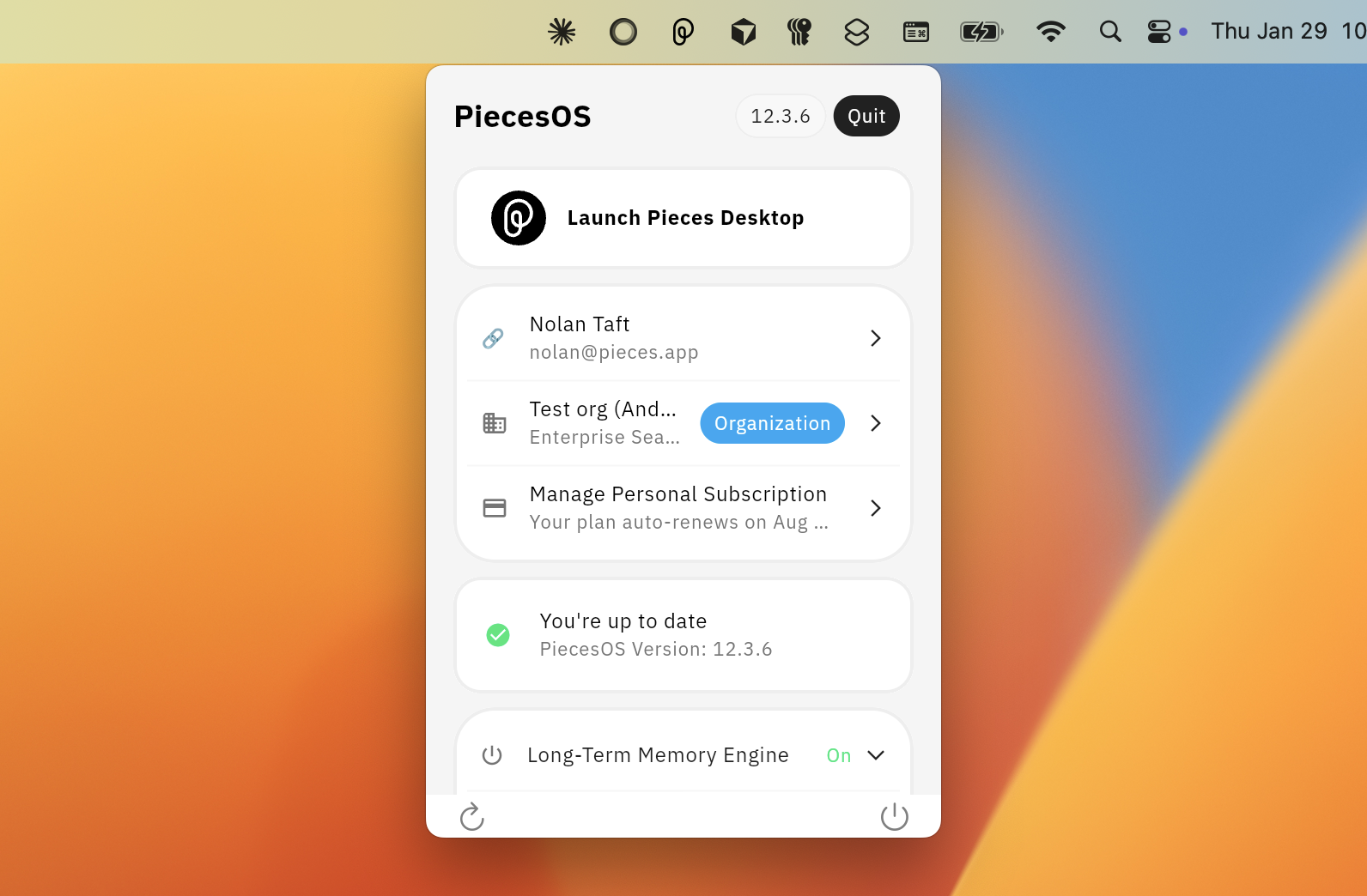
PiecesOS Quick Menu on macOS (Windows shares the same UI)
Quick Menu at a Glance
| Section | What it does |
|---|---|
| Account | Log in or log out of your Pieces account |
| Version | Check for and install PiecesOS updates |
| Long-Term Memory Engine | Enable, pause (custom duration with Paused until), or disable LTM |
| Long-Term Memory Access Control | Choose which apps LTM captures data from |
| MCP Servers | View the SSE endpoint URL and MCP documentation links |
| Settings | Launch on login, enabled apps, ML processing, telemetry, memory optimization |
| Resources | Links to documentation, support, and community |
Account
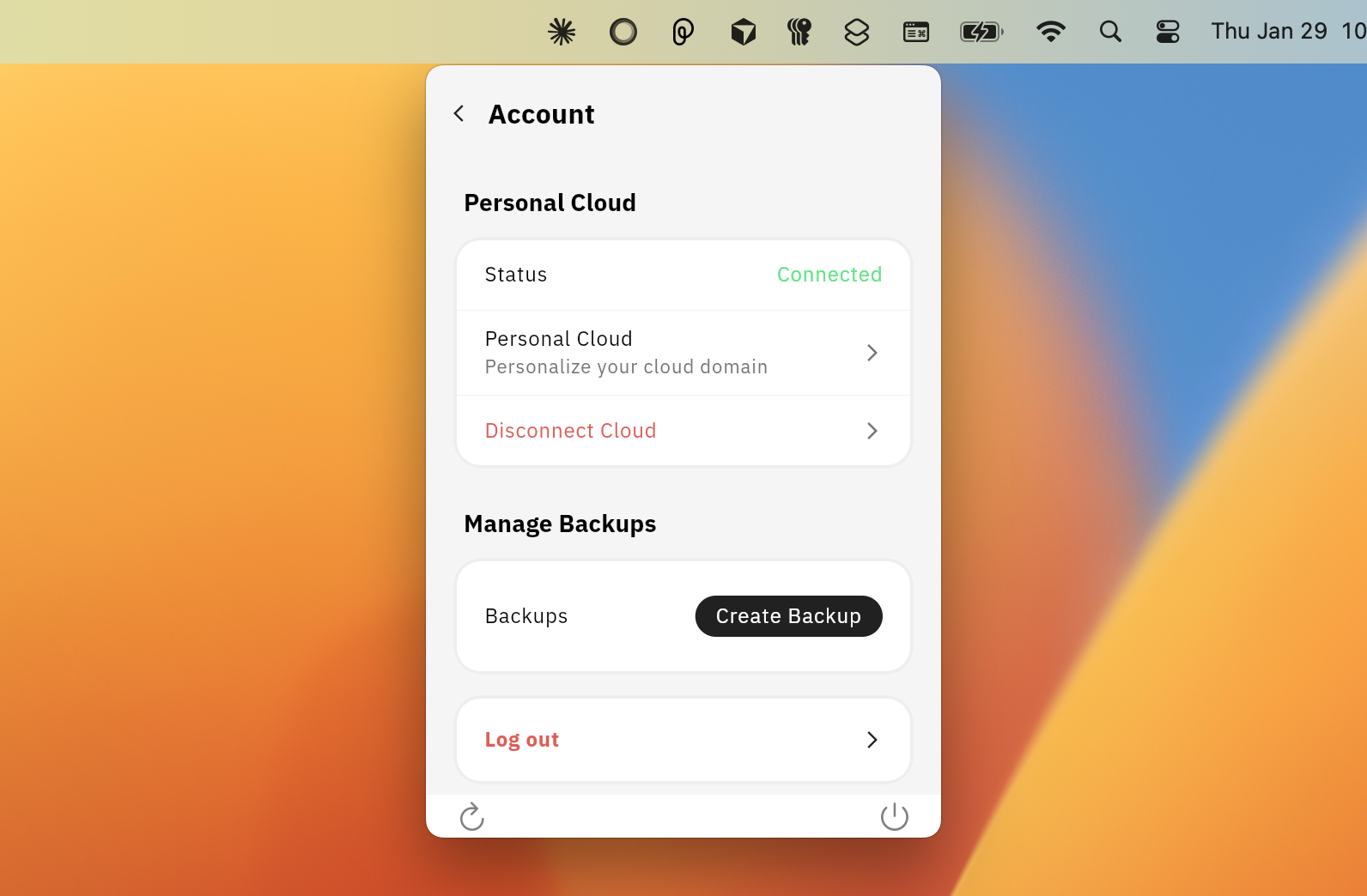
At the top of the Quick Menu, log in or out of your Pieces account. Logging in enables cloud-connected features like preference syncing and cloud model processing. Logging out keeps PiecesOS running locally with saved configurations.
Checking for Updates
Below your account, the Quick Menu displays your current PiecesOS version. If an update is available, click Update Available to install it. Otherwise, a green check mark confirms you're current.
Long-Term Memory
Toggle the LTM-2.7 Engine on or off, pause capture for a custom duration (with a Paused until label), manage Audio ingestion, and control which apps LTM captures data from via Access Control.
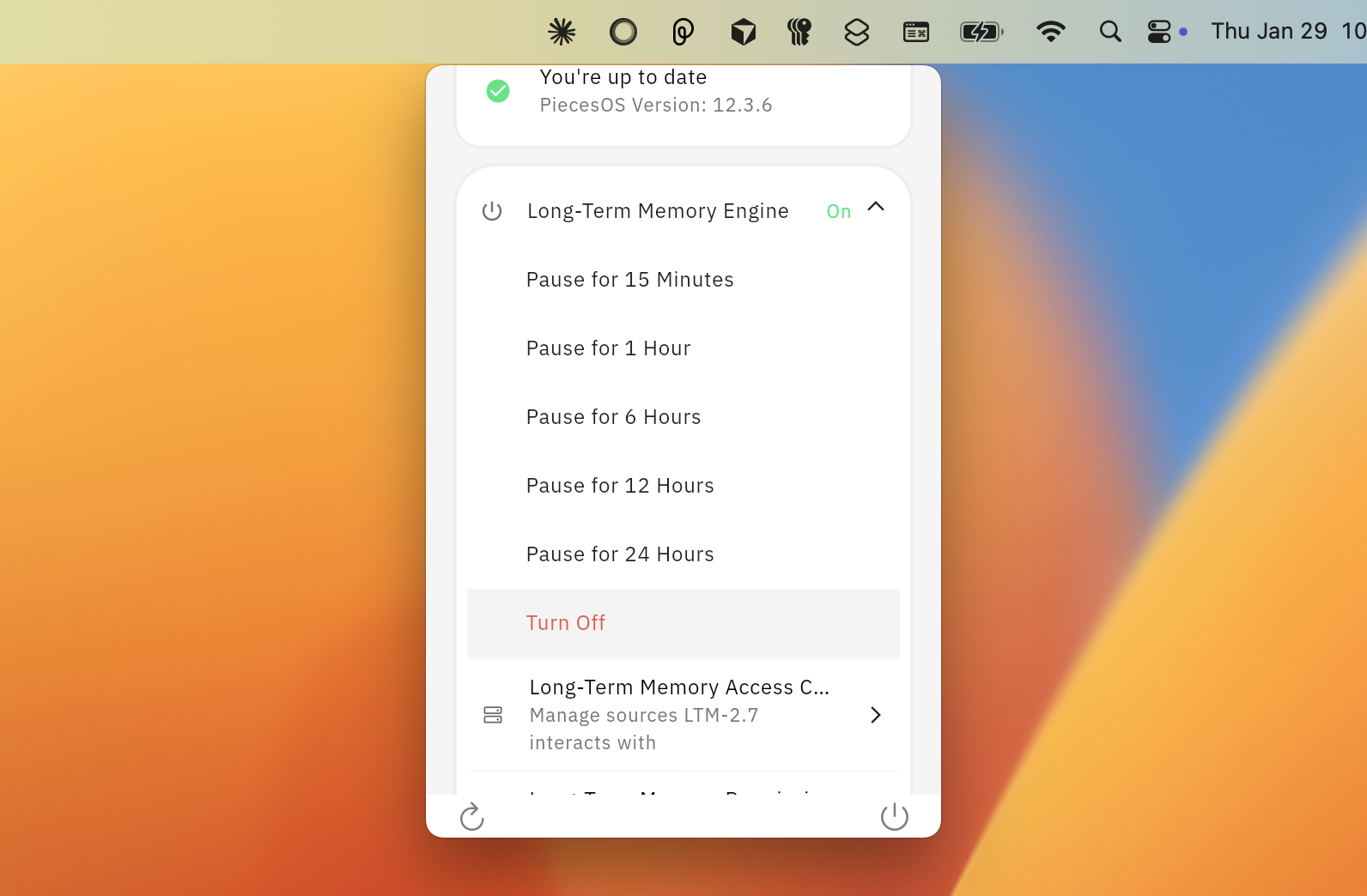
For all pause options, the Paused until label, Audio setup, and per-app toggles, see the LTM-2.7 Engine page.
MCP Servers
Find the SSE endpoint URL for creating your own Pieces MCP instances, plus links to setup guides for Cursor, VS Code, and other IDEs.

Settings
Optimize Memory Usage
Adjusts memory allocation for PiecesOS to reduce resource consumption while maintaining performance.

Launch on Login
Enable or disable automatic PiecesOS startup when your computer boots.
Enabled Apps
View which applications have active Pieces MCP integrations.

Telemetry Sharing
Enable or disable telemetry data collection per application or MCP integration.

Resources
Quick access to documentation, support, and community links.
Linux
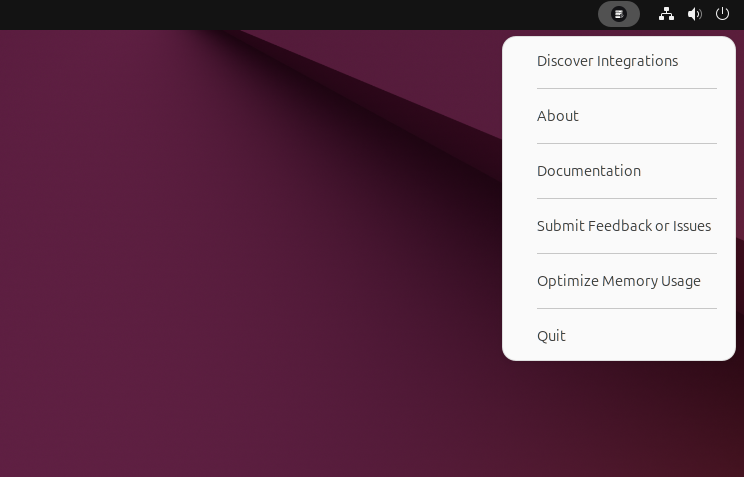
The Quick Menu on Linux has a reduced set of options:
- Discover Integrations — Opens the Pieces website with all MCP integrations
- About — Launches the About page
- Documentation — Opens the Pieces documentation
- Submit Feedback or Issues — Opens a form for bug reports and feedback. You can also visit our Support page.
- Optimize Memory Usage — Reduce PiecesOS resource consumption
- Quit — Stops PiecesOS. Relaunch by typing
pieces-osin your terminal.