Browse and Filter Timeline Events | Pieces Desktop
Browse and search your chronological list of captured activities and conversations in the Timeline Events sidebar.
Timeline Events
Timeline Events is the chronological sidebar that displays all activities and conversations captured by the Long-Term Memory (LTM-2.7) Engine. Located on the left side of Timeline, it serves as your navigation hub for accessing any past workflow context. The sidebar organizes your activities by date, making it easy to find specific items whether they happened today or months ago.
Click the Show Timeline button in the top-left corner of the main view to open or close Pieces Timeline.

Full screenshot of Timeline with Timeline Events sidebar open on the left, showing the "Show Timeline" button highlighted, multiple date groups (Today, Yesterday, Last Saturday), and several activity items with timestamps and icons
Understanding Activity Items
Each item in Timeline Events contains information about a specific captured activity or conversation from your workflow.
Each memory item displays:
- Title/Description: A concise summary of the activity (e.g., "Desktop App Documentation Updates", "SDK, Docs, & Work Ledger").
- Timestamp: When the activity occurred (e.g., "10 minutes ago - 2:24pm", "Half an hour ago - 2:04pm").
- Date Group: Memories are grouped by date (Today, Yesterday, Last Saturday, Last Sunday, etc.).
- Icon Indicators: Visual indicators showing the type of activity or associated apps.
- App Icons: Small icons showing which applications were involved (Chrome, VS Code, Slack, etc.).
- Count Badge: Number on the right indicating how many events or items are in that memory.
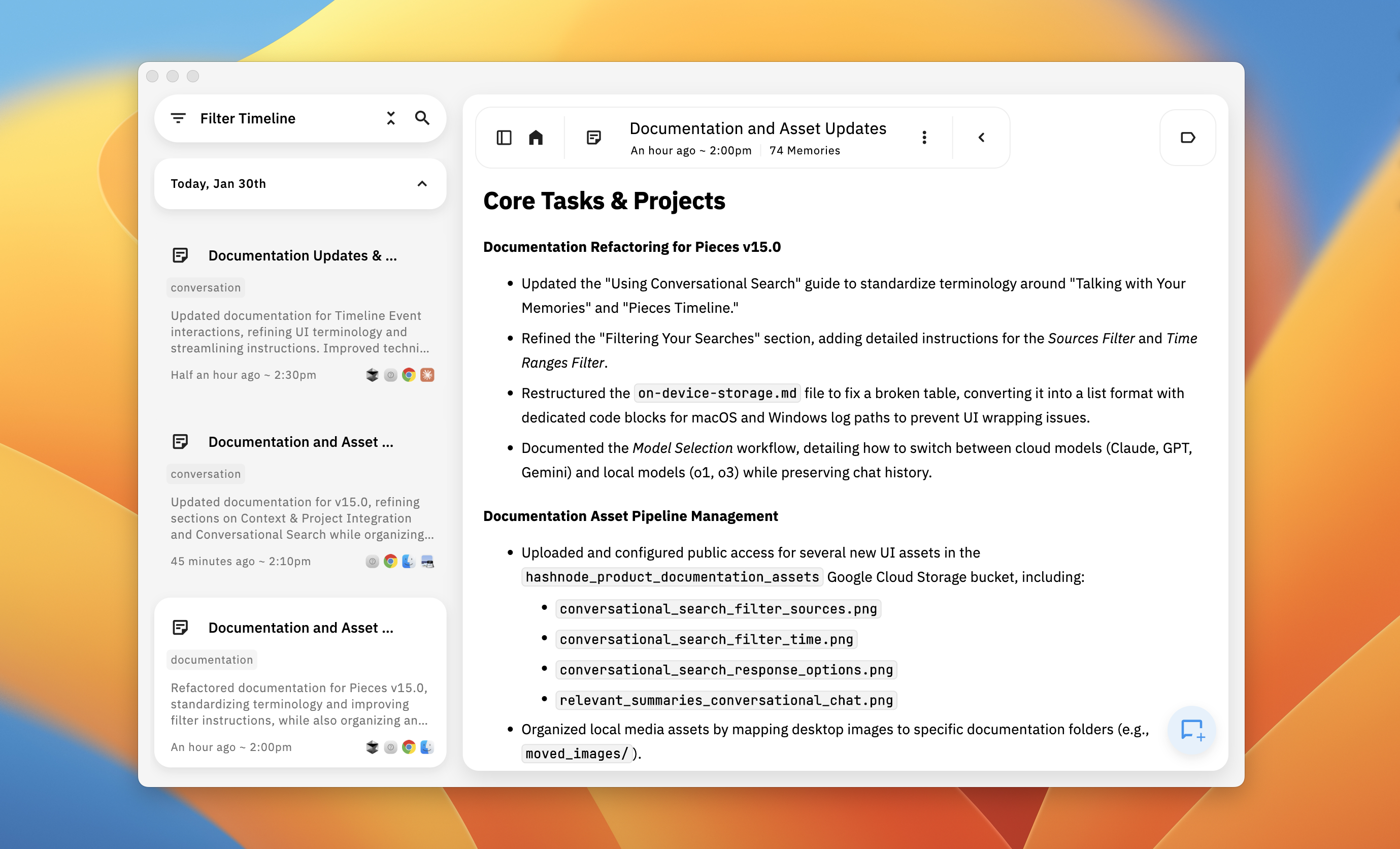
Showing current day dropdown in Timeline
Navigating Timeline Events
The Timeline Events sidebar provides multiple ways to find and access specific workflow moments.
Browsing by Date
Browse activities organized by date groups for easy navigation.
The sidebar automatically groups activities by date, with the most recent items at the top. Date groups include Today, Yesterday, and then specific dates for older activities (e.g., "Last Saturday, Jan 3rd"). Each day section can be expanded or collapsed to show or hide its contents. Scroll down through the sidebar to browse older activities—LTM-2.7 retains your workflow context for up to 9 months.
Expanding and Collapsing Day Sections
Each day section in Timeline Events can be expanded to view its contents or collapsed to hide them:
Searching & Filtering
Search and filter activities to find specific workflow moments quickly.
Searching Activities
Use the search bar to find activities by keyword or topic:

Search/filter functionality showing typing a search query in the search bar at the top of Timeline Events sidebar, with the activity list filtering in real-time to display only matching results
Viewing Activity Details
View full roll-up details for any activity item in the sidebar.
Viewing a Roll-Up
Click an activity to view its complete roll-up details:
Screenshot showing an activity item selected in the Timeline Events sidebar (highlighted) and the corresponding detailed roll-up displayed in the main panel to the right
Activity Retention
Understand how long your workflow activities are retained.
LTM-2.7 retains your captured workflow context for up to 9 months. This gives you access to a substantial history of your work, allowing you to reference past projects, conversations, and decisions long after they occurred. Activities older than 9 months are automatically removed to ensure optimal performance.
Tips for Using Timeline Events
Best practices for navigating and using Timeline Events effectively.
Following these tips helps you find and access workflow activities more efficiently.
- Use the search function when you remember specific keywords but not the exact date of an activity
- Date groups make it easy to find activities from "that meeting yesterday" or "the work I did last week"
- The emoji and app icons help you quickly scan the list visually—look for specific patterns that match what you're searching for
- If you're looking at a roll-up and want to see where it is in your chronological history, use the
Jump to Summary in Timelinebutton - Keep the Timeline Events sidebar open while working to quickly reference past context without losing your place
Next Steps
Now that you know how to browse and search Timeline Events, learn how to generate instant summaries from your workflow.