Long-Term Memory (LTM-2.7) | Pieces Docs
Learn how Pieces Long-Term Memory Engine captures workflow context from your applications, browser, and code editor to provide personalized AI assistance.
What is Long-Term Memory?
Long-Term Memory (LTM-2.7) is Pieces' on-device memory engine that continuously captures, enriches, and indexes contextual information from your daily workflow. LTM monitors your active applications, clipboard activity, screen captures, and audio input to build a comprehensive, searchable memory of your work.
Unlike traditional note-taking or code snippet tools that require manual saving, Long-Term Memory automatically captures workflow moments as they happen—storing code you copy, tracking conversations you have, and remembering decisions you make.
All captured context is processed and stored entirely on your device, ensuring your workflow data remains private and secure.
How Long-Term Memory Works
LTM-2.7 uses on-device machine learning to process and enrich workflow events in real-time:
- Capture - Monitors clipboard, screen, audio, and application activity
- Enrich - Extracts text, code, URLs, and metadata from captured events
- Index - Creates searchable vectors for semantic retrieval
- Connect - Links related events, conversations, and code snippets
The result is a personal, searchable knowledge graph of your workflow that powers Conversational Search, Timeline, and context-aware AI interactions via MCP integrations.
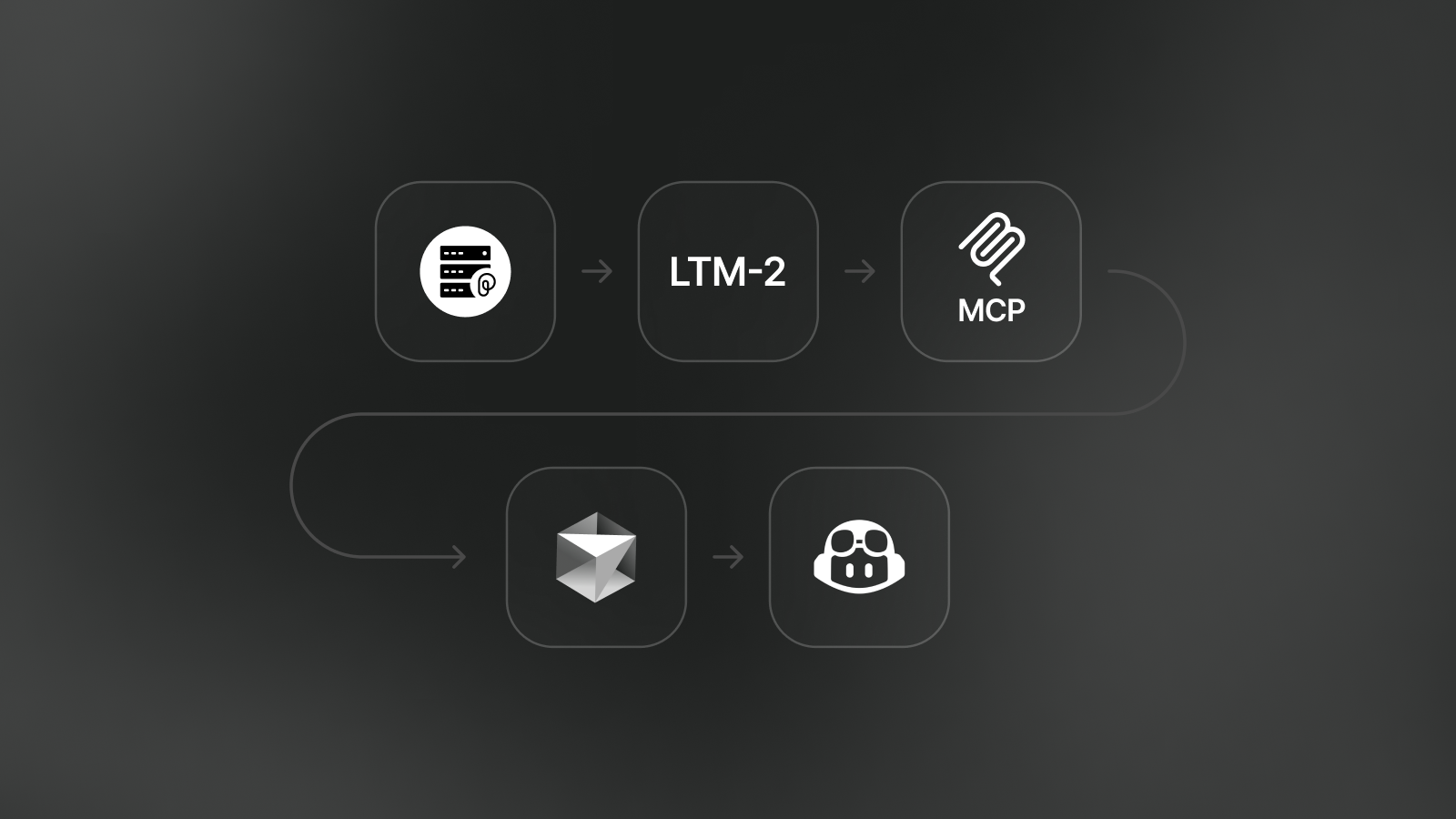
Long-Term Memory captures workflow context from your applications and makes it accessible to AI tools via PiecesOS
What Gets Captured
Long-Term Memory tracks multiple types of workflow context:
Clipboard Events
Code snippets, terminal commands, error messages, and text you copy are automatically captured and enriched with language detection, syntax highlighting, and related context.
Screen Captures
Screenshots and screen recordings are analyzed with OCR (Optical Character Recognition) to extract visible text, making even visual content searchable through Conversational Search.
Audio Transcription
With LTM Audio enabled, Pieces can transcribe system audio (meetings, videos, podcasts) and microphone input (your voice during calls) to capture spoken context from your workflow.
Application Activity
The Long-Term Memory Engine monitors which applications you use, what windows you focus on, and what URLs you visit—providing temporal context for when and where workflow events occurred.
Use Cases and Benefits
Context-Aware AI Assistance
When using Conversational Search or MCP-integrated AI tools, Long-Term Memory enables AI assistants to understand your project history, past decisions, and workflow patterns.
Example queries:
- "What did we decide about authentication in last week's standup?"
- "Show me the error message I saw yesterday when deploying to staging"
- "Have I encountered this React hook issue before?"
Timeline & Workflow Insights
Long-Term Memory powers Timeline, which organizes your workflow events chronologically and generates automatic summaries like Day Recap, Morning Brief, and What's Top of Mind.
Cross-Application Context
Because LTM captures context from multiple sources (IDE, browser, terminal, meetings), Pieces can connect related information across applications—showing you code snippets related to a bug you discussed in a meeting, or documentation you read while debugging.
Privacy-First Design
All Long-Term Memory processing happens on your device. Your workflow context never leaves your machine unless you explicitly choose to:
- Share materials explicitly when you choose to
- Use cloud models in Conversational Search
- Enable cloud sync (optional)
Learn more about privacy and data storage.
Enabling Long-Term Memory
Long-Term Memory is enabled by default when you install Pieces Desktop. You can verify or toggle LTM status in settings:
For detailed configuration options, see Long-Term Memory Settings.
Controlling What Gets Captured
You have fine-grained control over what Long-Term Memory captures:
App Access Control
Choose which applications LTM can monitor. Disable specific apps (like password managers or private browsing) to exclude them from capture.
System Permissions
Grant or revoke accessibility and screen recording permissions on macOS, Windows, or Linux to control LTM's ability to capture screen and application context.
Clear Stored Data
Remove captured LTM data without disabling the engine. You can scope deletions by time period (last hour, today, this week, or a custom range), by modality (vision, clipboard, or audio), and by app source, or combine all three to clear data precisely.
See Clearing Long-Term Memory Data for the full walkthrough.
How AI Tools Access LTM
Long-Term Memory is accessible to AI assistants via two pathways:
1. Conversational Search (Pieces Desktop)
Chat with your memories directly in the Pieces Desktop app. Ask questions about your workflow, and Pieces retrieves relevant context from LTM.
2. MCP Integrations (IDEs & AI Tools)
Connect AI coding assistants like Cursor, VS Code, and GitHub Copilot to your Long-Term Memory via Model Context Protocol. Your AI assistant can query LTM to provide context-aware code suggestions and answers.
Performance and Resource Usage
Long-Term Memory runs efficiently in the background with minimal impact:
- CPU Usage: Low-priority background processing during idle time
- Memory: ~200-500 MB RAM for ML models (unloaded when inactive)
- Storage: Variable based on captured content (typically 1-5 GB)
You can optimize system resource usage by unloading ML models from memory when not in use. See Performance Settings.
Learn More
Next Steps
Now that you understand Long-Term Memory, explore how to use the context it captures:
- Timeline - View chronological workflow events and auto-generated summaries
- Conversational Search - Chat with your memories to retrieve past context
- MCP Integrations - Connect AI coding assistants to your Long-Term Memory
If you need help troubleshooting Long-Term Memory, visit Pieces Support for guides and community resources.