Navigating Pieces Desktop Application
The Pieces Desktop Application offers a variety of views and layouts to enhance your workflow, with primary navigation occurring through the Power Menu.
Power Menu
Navigation throughout the Pieces Desktop App is performed through the Power Menu.
There are two ways to open the Power Menu:
<Image src="https://storage.googleapis.com/hashnode_product_documentation_assets/desktop_app_assets/desktop_app_MAIN/new_media/Settings/Support%20%26%20Information/scrolling_power_menu.gif" alt="Opening the Power Menu from the Home icon" align="center" fullwidth="true" />
| **macOS**   | **Windows**    | **Linux**      |
| ----------- | -------------- | -------------- |
| `⌘+shift+p` | `ctrl+shift+p` | `ctrl+shift+p` |
Interactive, labeled buttons in this menu let you jump to different views that correspond with different features and functionalities within the Pieces Desktop App.
Views from the Power Menu
There are several views available within the Power Menu at any given point.
If you want more information, click the titles of the views below to read more specific documentation on them:
Conversational Search: Quick-access buttons in the Power Menu let you jump between views depending on where you are in the app.
Settings: The master settings window.
Updates & Upcoming: View release notes for upcoming features and past releases.
Global Search: Search saved materials across your workflow.
via Power Menu — Find Action
From within the Power Menu, there is a search bar titled Find Action.
From this menu, you can either click or scroll through some of the available options, like Manage General Conversational Search Settings, New General Conversational Search Conversation, or Refresh Selected Chat.
These actions, some of which are view-specific—like refreshing a selected Conversational Search conversation—are useful ways to navigate throughout the Pieces Desktop App while maintaining speed and efficiency in your workflow.
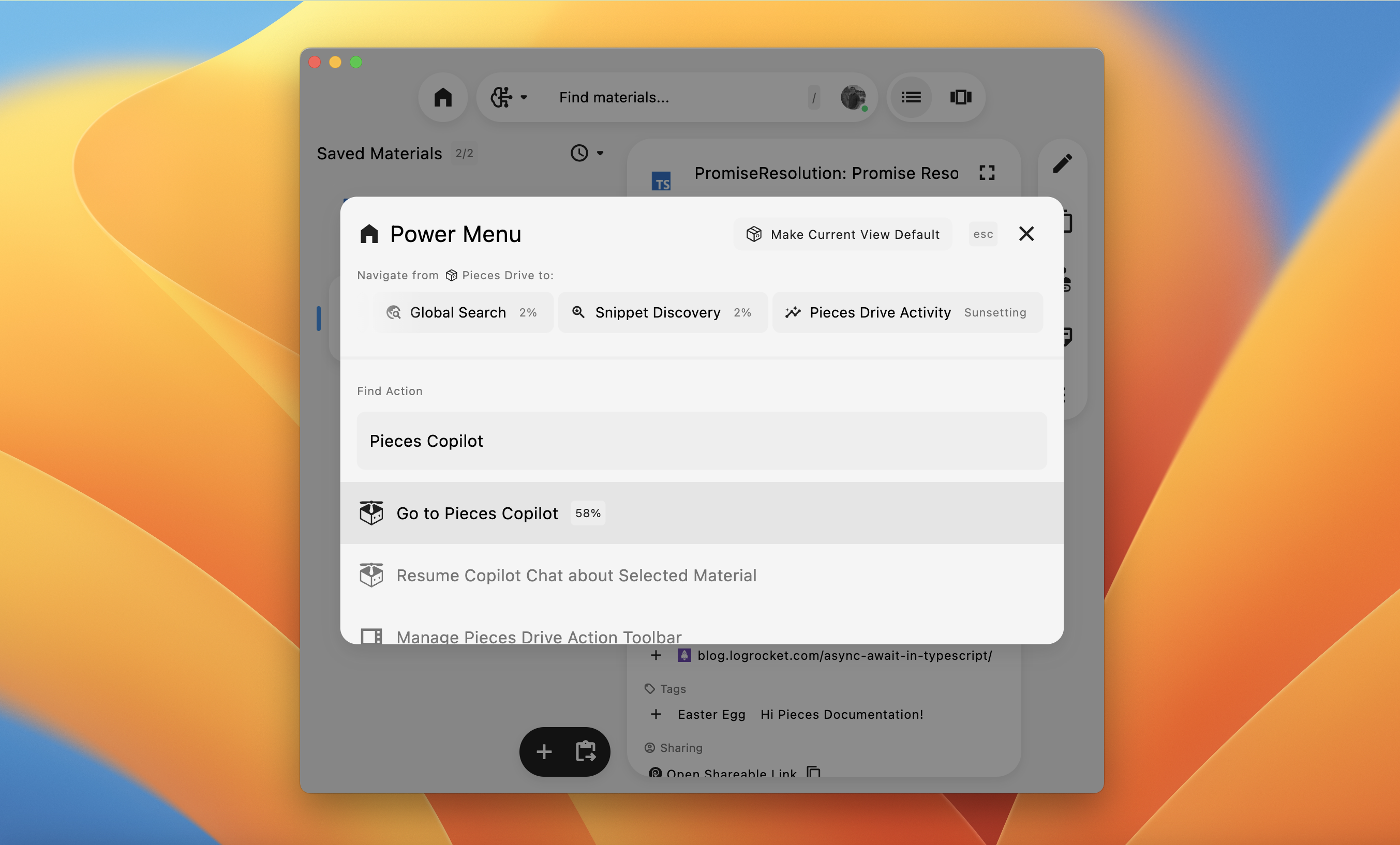
Included at the very end of the scrollable Find Actions list are links to other Pieces plugins and extensions, as well as social outlets (Pieces YouTube, Pieces Discord, etc.) and two additional links for reporting issues or contacting support.
via Power Menu — Settings
The Settings view is the only page from which the Power Menu cannot be accessed.
This view contains several different buckets of configurable options: Account, Long-Term Memory, Models, Model Context Protocol (MCP), Appearance, and Troubleshooting.
Focus Mode
Focus Mode allows you to concentrate on your current task by minimizing distractions.
You can toggle Focus Mode by clicking the Focus Mode button located in the upper left of the Conversational Search view, near the sidebar.
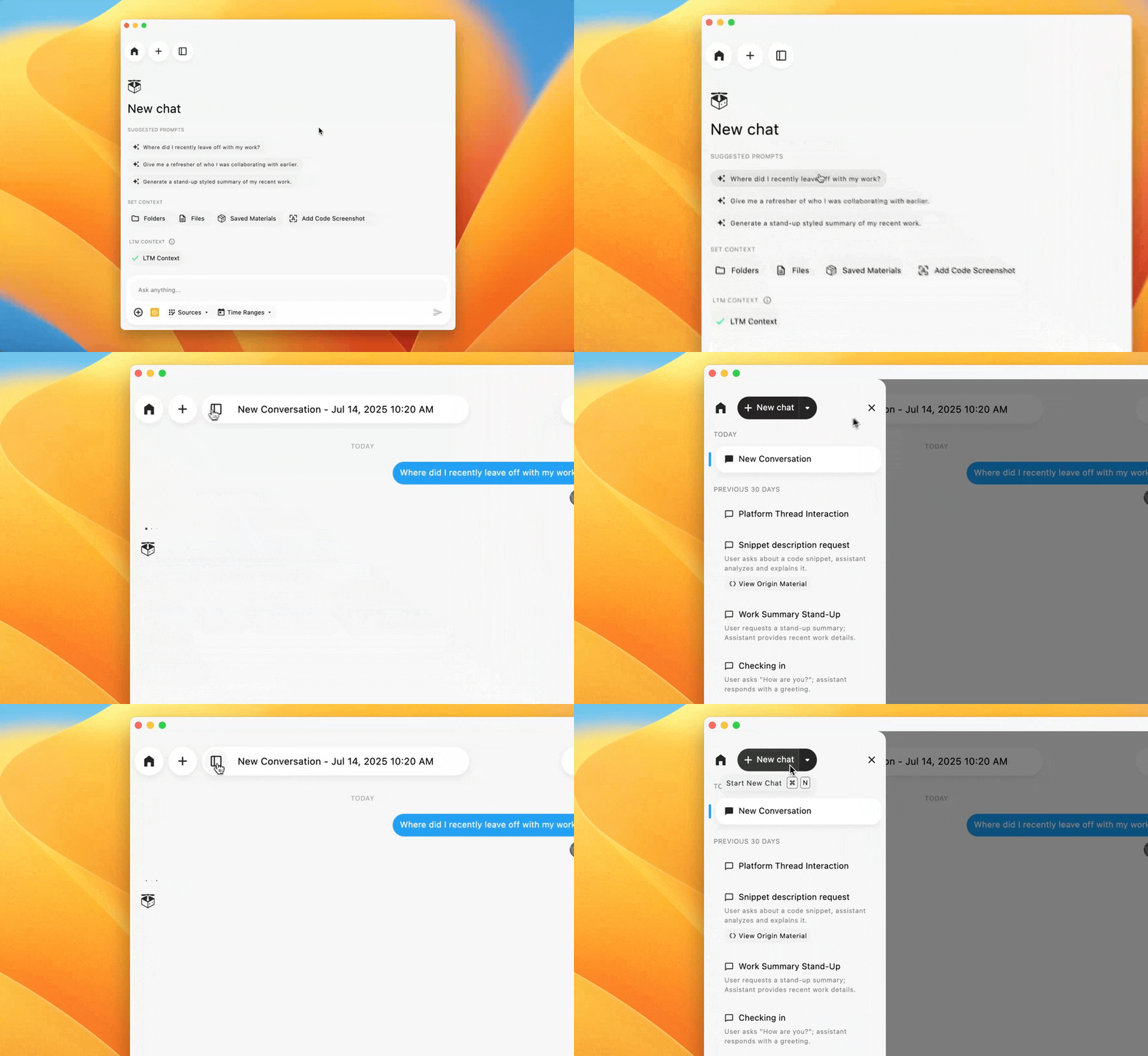
When activated, it closes the sidebar, giving you an expanded view of your current Conversational Search conversation.
To exit Focus Mode, simply click the button again to restore the sidebar, or press esc (macOS/Windows/Linux).