Troubleshooting Settings in Pieces Desktop
Access support resources, documentation, feedback channels, version information, and troubleshooting help in Pieces Desktop.
Troubleshooting Settings
Get help, troubleshoot issues, view app information, and contact support. Access support resources, documentation links, version details, and feedback channels to resolve issues and get the most out of Pieces.
To access Troubleshooting settings, click your User Profile in the top left, then hover over Settings and select Troubleshooting.
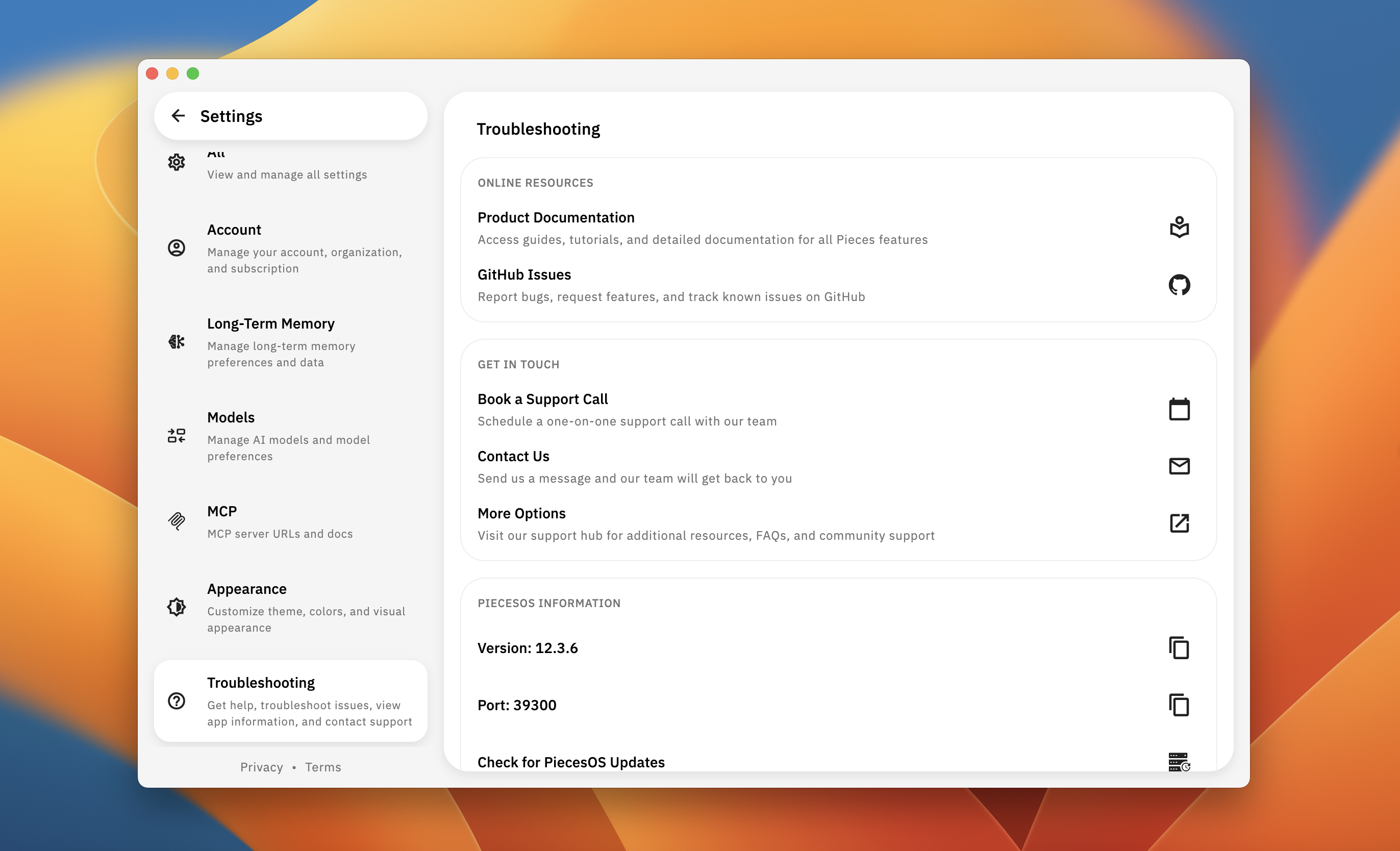
Troubleshooting settings showing Online Resources, Get In Touch, PiecesOS Information, and Desktop App Information sections
Online Resources
Access documentation and community resources to find answers and solutions to common issues.
Product Documentation
Access Pieces' official documentation to learn how to use features, configure settings, and get the most out of Pieces.
GitHub Issues
Report bugs, request features, and track known issues on GitHub. The GitHub issues page is a great place to see what others are experiencing and contribute to improving Pieces.
Get In Touch
Contact the Pieces team directly for personalized support, feedback, or additional help resources.
Book a Support Call
Schedule a one-on-one support call with our team to get personalized assistance with any issues or questions you have.
Contact Us
Send us a message and our team will get back to you. Use this option for general questions, feedback, or issues that don't require immediate attention.
More Options
Visit our support hub for additional resources, FAQs, and community support. This provides access to a comprehensive knowledge base and community forums.
PiecesOS Information
View information about your installed PiecesOS version, check for updates, and see what port PiecesOS is using. PiecesOS is the core engine that powers all Pieces functionality.
Viewing PiecesOS Version
Viewing PiecesOS Port
View the port number that PiecesOS is currently using. This information is useful for troubleshooting connection issues or configuring integrations.
Checking for PiecesOS Updates
Manually check if a new version of PiecesOS is available. Updates may include bug fixes, performance improvements, and new features.
Desktop App Information
View information about your installed Pieces Desktop App version, check for updates, and see your platform details. The Desktop App provides the user interface and features built on top of PiecesOS.
Viewing Desktop App Version
Viewing Platform Information
View your operating system and platform details. This information is useful for troubleshooting or when seeking support.
Checking for Desktop App Updates
Manually check if a new version of the Pieces Desktop App is available. Updates may include new features, UI improvements, and bug fixes.
Keyboard Shortcuts
View all available keyboard shortcuts for Pieces Desktop. Learn shortcuts to navigate faster, perform actions quickly, and improve your workflow efficiency.
For a complete reference guide of all keyboard shortcuts, see the Keyboard Shortcuts documentation.
Quick Links
Access common resources and documentation quickly:
- Product Documentation - Complete Pieces Desktop documentation
- Keyboard Shortcuts - All available keyboard shortcuts
- GitHub Issues - Report bugs and request features
- Discord Community - Join the Pieces community for support
- Privacy & Security - Learn about data privacy and security
- Support - Additional support resources and FAQs
Next Steps
Now that you understand how to access troubleshooting resources, learn about Account settings to manage your account and cloud settings, or explore Choose a Model to switch between model families and modes.