Managing Organizations | Pieces Docs
Comprehensive guide to managing organizations, members, billing, and settings in Pieces.
Organization Home
Access your organization's Home page to get set up, navigate to management tools, and find helpful resources for your team.

Organization Home page showing setup instructions, management links, and resource cards
Inviting Members
Add team members to your organization by sending invitations. You can invite members individually, add multiple members at once, or bulk upload via CSV.
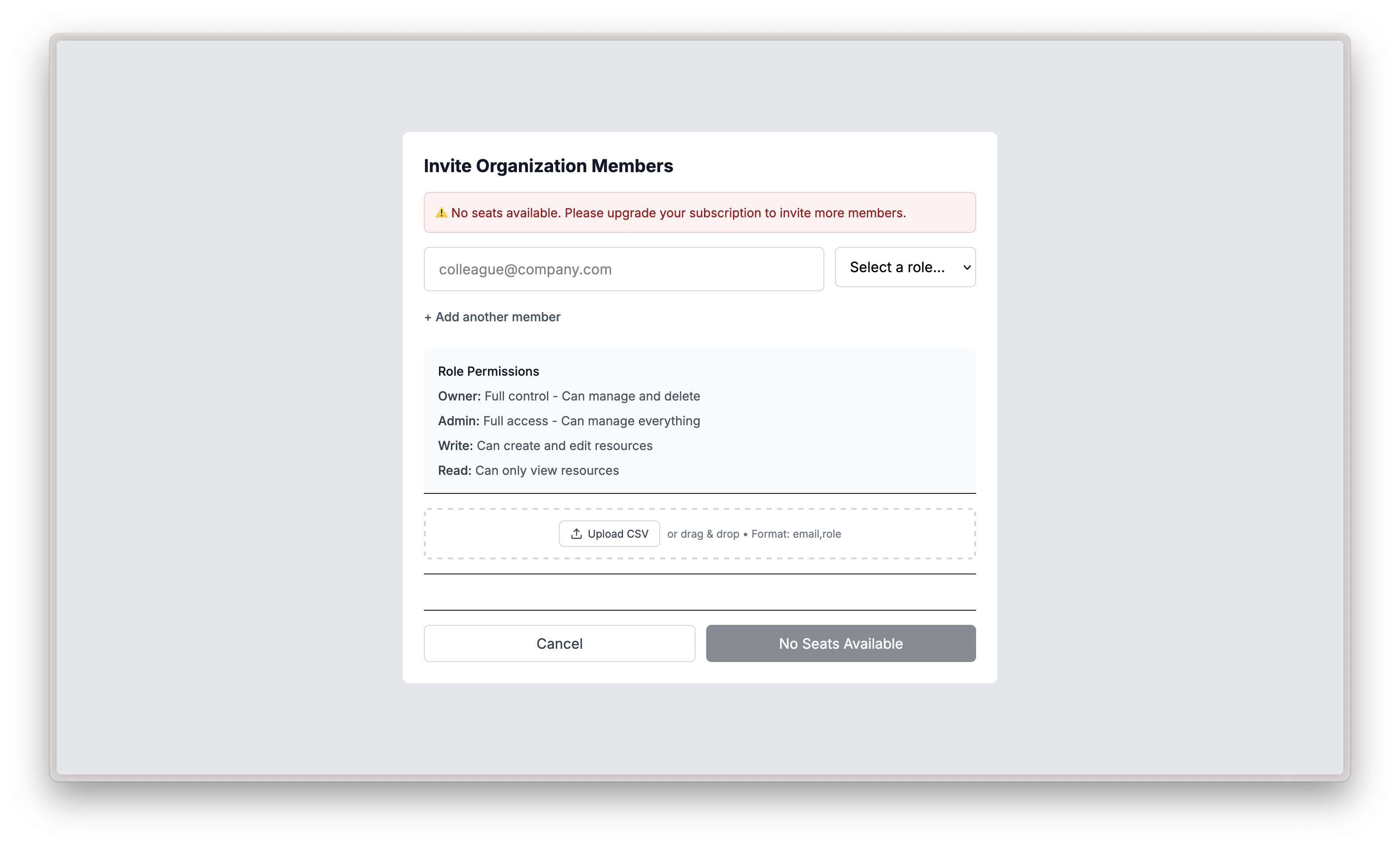
Invite members modal showing email input, role selection, and CSV upload option
Managing Members
View and manage all organization members, track seat usage, handle pending invitations, and update member roles and permissions.
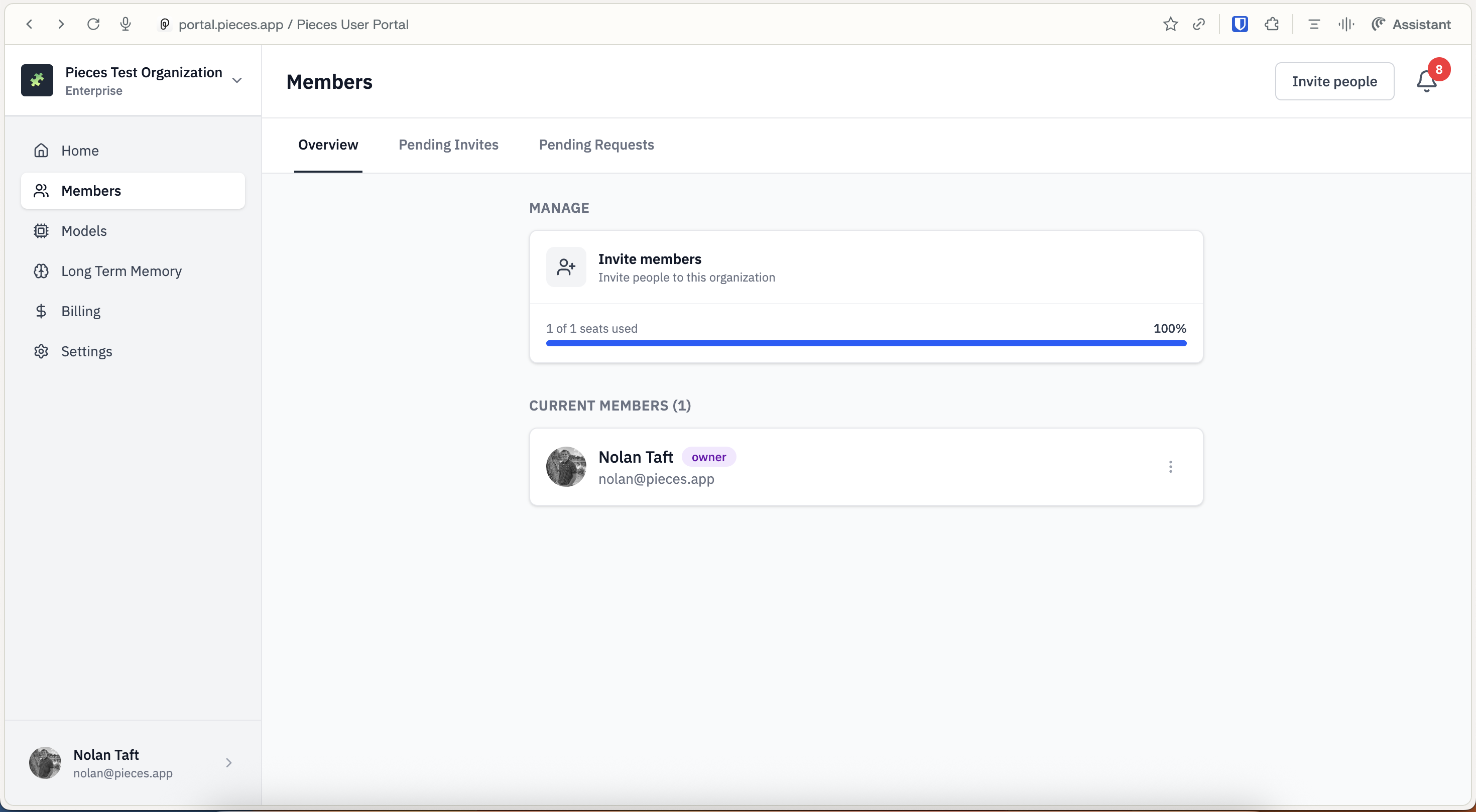
Members tab showing seat usage, current members list, and pending invites
Billing
Manage your organization's subscription, update seat counts, view billing information, and configure billing addresses.

Billing tab showing subscription details, seat count, and billing address options
Models (Organization Management for AI)
The Models section is the organization management area for AI configuration. It appears as a top-level item in the sidebar with two tabs: Models (general settings, allow-lists, BYOK) and API Keys (OpenAI, Anthropic, GCP credentials).

Models section showing general settings and API keys configuration
Long Term Memory
Configure context capture settings, application sources, denied websites, and default models for memory processing. Long Term Memory is a top-level item in the sidebar.

Long Term Memory section showing Memory Formation toggles and Default Models
Organization Settings
Configure organization-wide settings that sync to team members' Pieces Desktop and PiecesOS installations. Settings includes General (contact info, address) and Features (External Cloud, Analytics toggles).

Settings page showing tabs for General and Features
Next Steps
Now that you understand organization management, learn about Account Settings to manage your personal account, or explore how to create and join organizations.