Managing Teams
Teams allow you to organize members within your organization into smaller groups. Teams can post updates and collaborate on specific projects, providing a way to segment work and communication.

Teams dropdown showing team list and create team option
Creating and Accessing Teams
Set up new teams and navigate to existing teams within your organization. Teams help organize members into smaller groups for focused collaboration on specific projects.
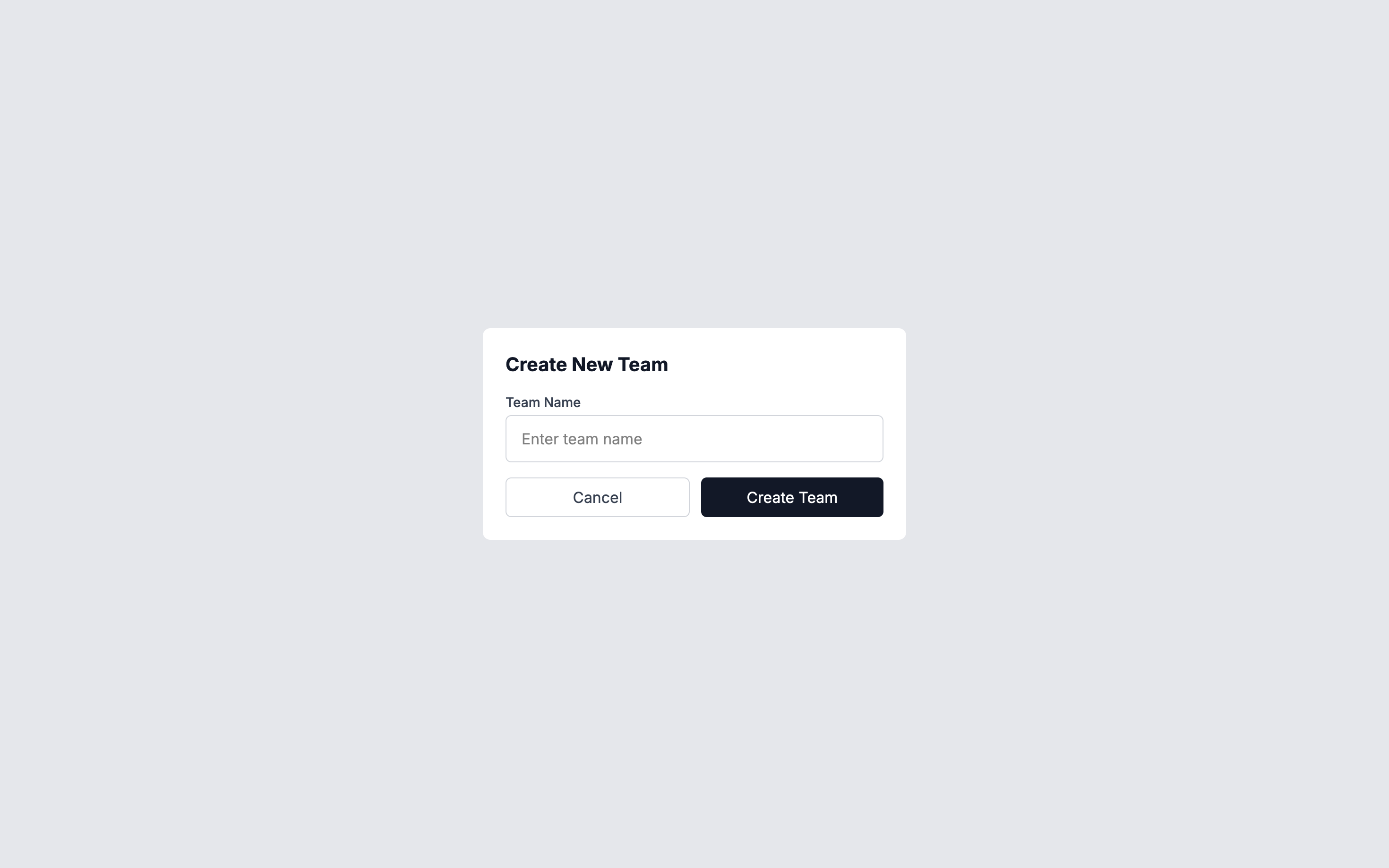
Team creation modal showing name input field and create button
Creating a Team
Set up a new team to organize members and facilitate focused collaboration.
From your *organization overview* page, click `Teams` in the *sidebar* navigation. If no teams exist, you'll see a "No teams yet" message.
Click the `Create team` link (with a plus icon) to open the team creation modal.
In the *creation* modal, enter a name for your team that clearly identifies its purpose or project focus.
Click the `Create Team` button to create the team. The team will be added to your organization and available in the Teams dropdown.
Accessing a Team
View a team's overview page to see team-specific updates and activities.
Click `Teams` in the *sidebar* navigation to expand the *teams dropdown*.
Click on the team name you want to access from the list of available teams.
The team overview page displays similar to the organization overview, showing recent updates posted to that team. You can post updates, view team activity, and see team members.
Working with Teams
Post updates to teams and manage team structure.

Team overview page showing team-specific updates and activities
Posting Team Updates
Share updates specific to a team by posting to the team's overview page.
Navigate to the team you want to post an update to using the *Teams* dropdown.
Click the `Post Update` button on the team overview page.
Enter the title, content, and tags for your team update, then click `Post Update` to publish it to the team.
Deleting Teams
Remove teams that are no longer needed from your organization.
From your *organization overview*, click `Settings` in the *sidebar* navigation.
In the *Settings* page, click the `Teams` tab to view all teams in your organization.
Find the team you want to delete in the list. Click the red trash can icon next to the team name to delete it.
Confirm the deletion. The team and all its updates will be permanently removed from your organization.
Next Steps
Now that you understand team management, learn about organization settings to configure team-wide settings, or explore managing members to understand how to assign members to teams.