The Members tab provides a comprehensive view of all organization members, seat usage, pending invitations, and member management tools. Use this section to track membership, update roles, and manage access.
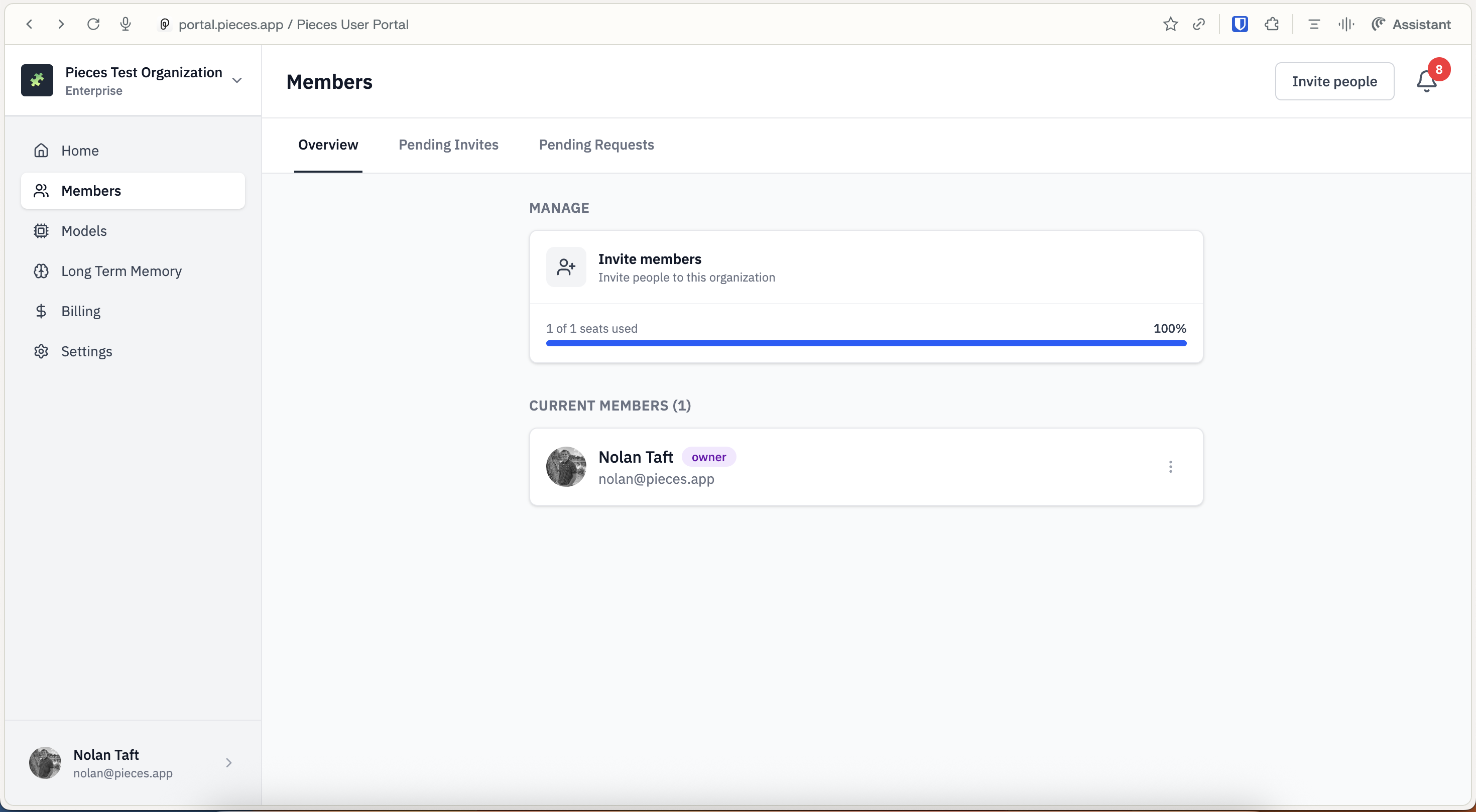
Members tab showing seat usage, current members list, and pending invites
How to Get to Members
Go to [portal.pieces.app](https://portal.pieces.app) and sign in. Select your organization from the *sidebar* dropdown if needed.
Click `Members` in the *sidebar* navigation.
Viewing Members and Seat Usage
From your organization's `Home` page, click `Members` in the *sidebar* navigation.
At the top of the Members page, you'll see the *Seat Usage* card showing how many seats are used out of your total subscription (e.g., "1 of 1 seats used") with a visual progress bar.
Scroll down to the *Current Members* section to see a list of all active organization members, their email addresses, and their assigned roles (Owner, Admin, Write, or Read).
Viewing Pending Invitations
Track invitations that have been sent but not yet accepted by members.
In the *Members* page, click the `Pending Invites` tab at the top of the page.
View all invitations that are waiting for acceptance. You'll see the email addresses and roles assigned to each pending invitation.
Managing Members
Update member roles and remove members from your organization.

Managing Member Roles
Update member roles to change their permissions and access levels within the organization.
In the *Current Members* list, find the member whose role you want to change. Click the vertical ellipsis icon (three dots) next to their name to open the *member options* menu.
Select the role dropdown and choose a new role:
* **Owner**: Full control including deletion rights
* **Admin**: Full access except organization deletion
* **Write**: Can create and edit resources
* **Read**: View-only access
A save reminder appears at the bottom of the page. Click `Save` to apply the role change. The member's permissions will update immediately.
Removing Members
Remove members from your organization when they no longer need access.
In the *Current Members* list, click the vertical ellipsis icon next to the member you want to remove.
Select `Remove from Organization` from the options menu.
Confirm the removal action. The member will immediately lose access to the organization and their seat will become available.
Understanding Seat Management
Seats are tied to your subscription and determine how many active members your organization can have.
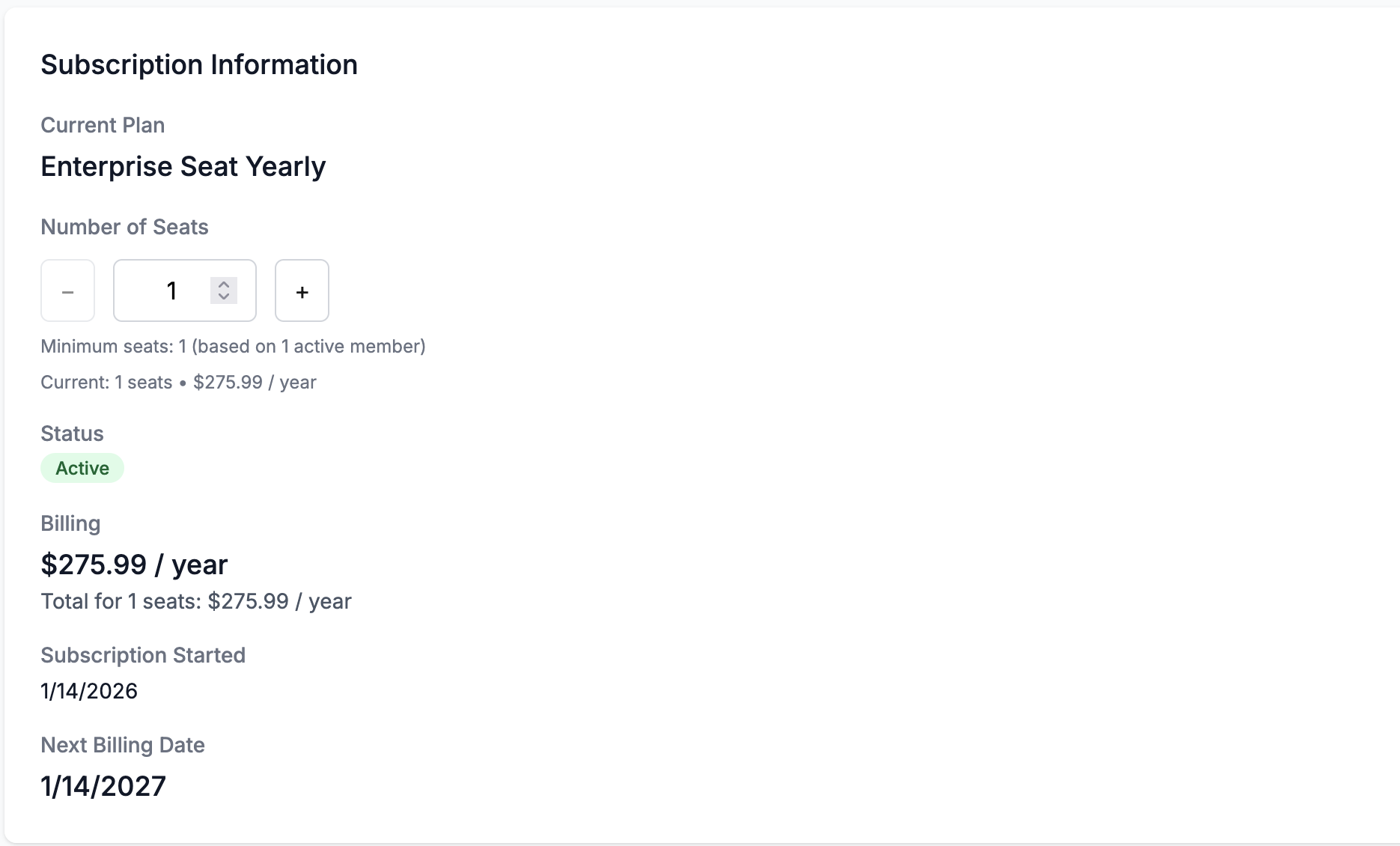
Seat usage card showing current usage and total seats available
Understanding how seats work helps you manage your organization effectively:
- Active Members - Each active member uses one seat
- Minimum Seats - You must maintain at least one seat based on your number of active members
- Seat Availability - Available seats = Total seats - Active members
- Upgrading - Increase seats from the Billing tab when you need to invite more members
Next Steps
Now that you understand member management, learn about billing to manage your subscription and seat count.