Member Permissions | Pieces Docs
Comprehensive guide to organization member roles and permissions in Pieces.
Understanding your role and permissions helps you know what you can do within your organization and what requires owner or admin access. Each role has specific capabilities and limitations.
Understanding Roles
Organizations have four main roles with different permission levels. Each role determines what you can do within the organization.
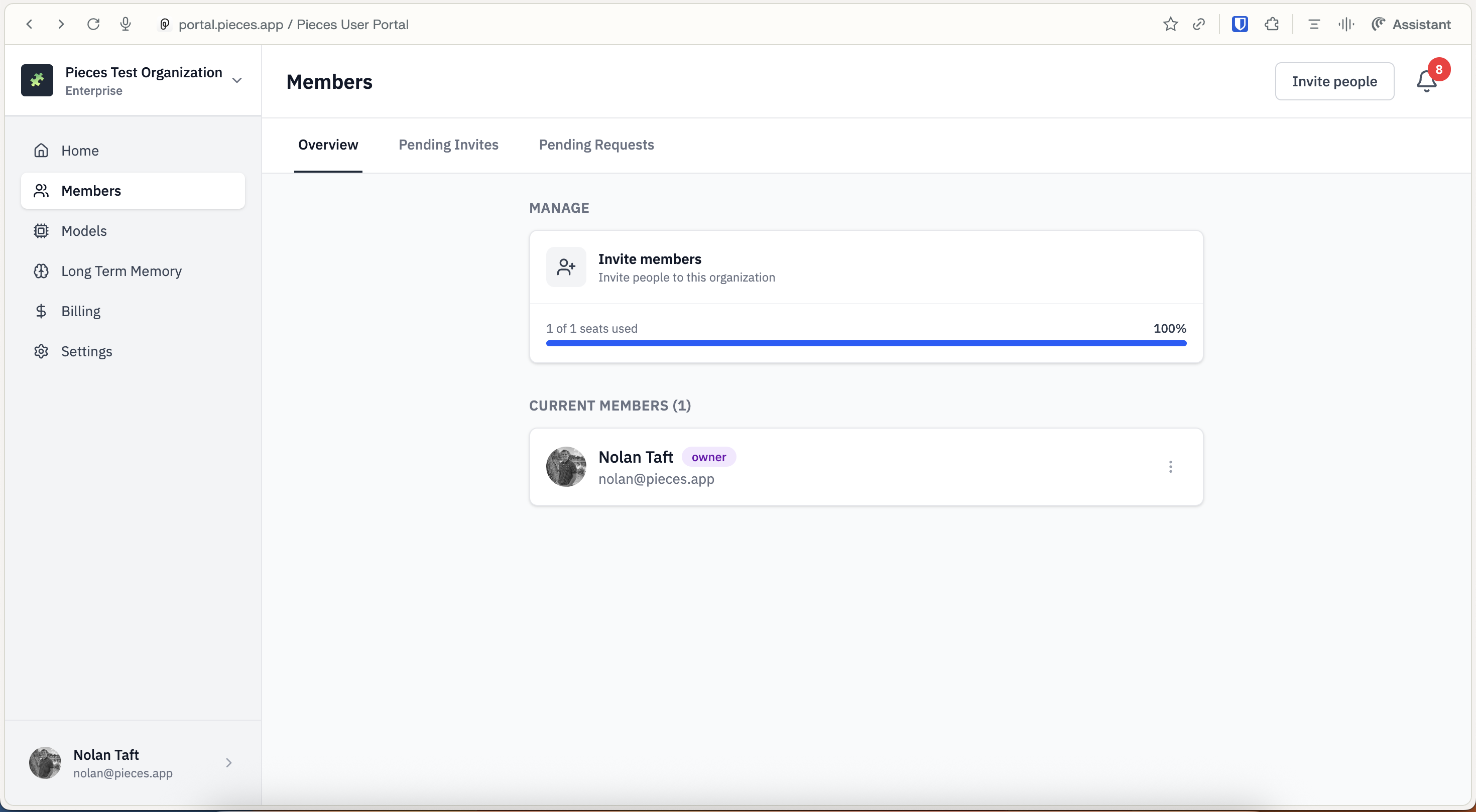
Members tab showing seat usage and member list with role indicators
The four roles are:
- Owner - Full control including organization deletion
- Admin - Full access except organization deletion
- Write - Can create and edit resources
- Read - View-only access
Role Permissions
Each role has specific capabilities and limitations that determine what you can do within an organization.
Read Role Permissions
Members with the Read role have the most limited access. They can view content but cannot create or modify anything.
What Read members CAN do:
- View organization Home page and resources
- View organization members list
What Read members CANNOT do:
- Invite or manage members
- Access billing or settings
Write Role Permissions
Members with the Write role can create and edit content but cannot manage the organization.
What Write members CAN do:
- Everything Read members can do, plus:
- Create and manage their own content
What Write members CANNOT do:
- Invite or manage members
- Change member roles
- Access billing or settings
- Manage organization-wide settings
Admin Role Permissions
Admins have extensive access but cannot delete the organization.
What Admins CAN do:
- Everything Write members can do, plus:
- Invite and manage members
- Change member roles
- Access billing and manage subscriptions
- Configure organization settings
- Manage all organization content
What Admins CANNOT do:
- Delete the organization (reserved for Owners)
Owner Role Permissions
Owners have full control over the organization.
What Owners CAN do:
- Everything Admins can do, plus:
- Delete the organization
- Full control over all organization resources
How Permissions Affect Daily Use
Your role determines what you see and can do in the organization interface:
- Sidebar Navigation - Read and Write members see fewer options than Admins and Owners
- Action Buttons - Some buttons (like
Invite people) only appear for Admins and Owners - Settings Access - Only Admins and Owners can access the Settings and Billing sections
- Content Management - Your ability to manage content depends on your role
Requesting Access Changes
If you need different permissions to perform your work:
Next Steps
Now that you understand member permissions, learn about member overview to see what features are available to you, or explore managing organizations if you become an Owner or Admin.