Add team members by sending invitations. You can invite one at a time, add multiple, or bulk upload via CSV. Each member needs an available seat.
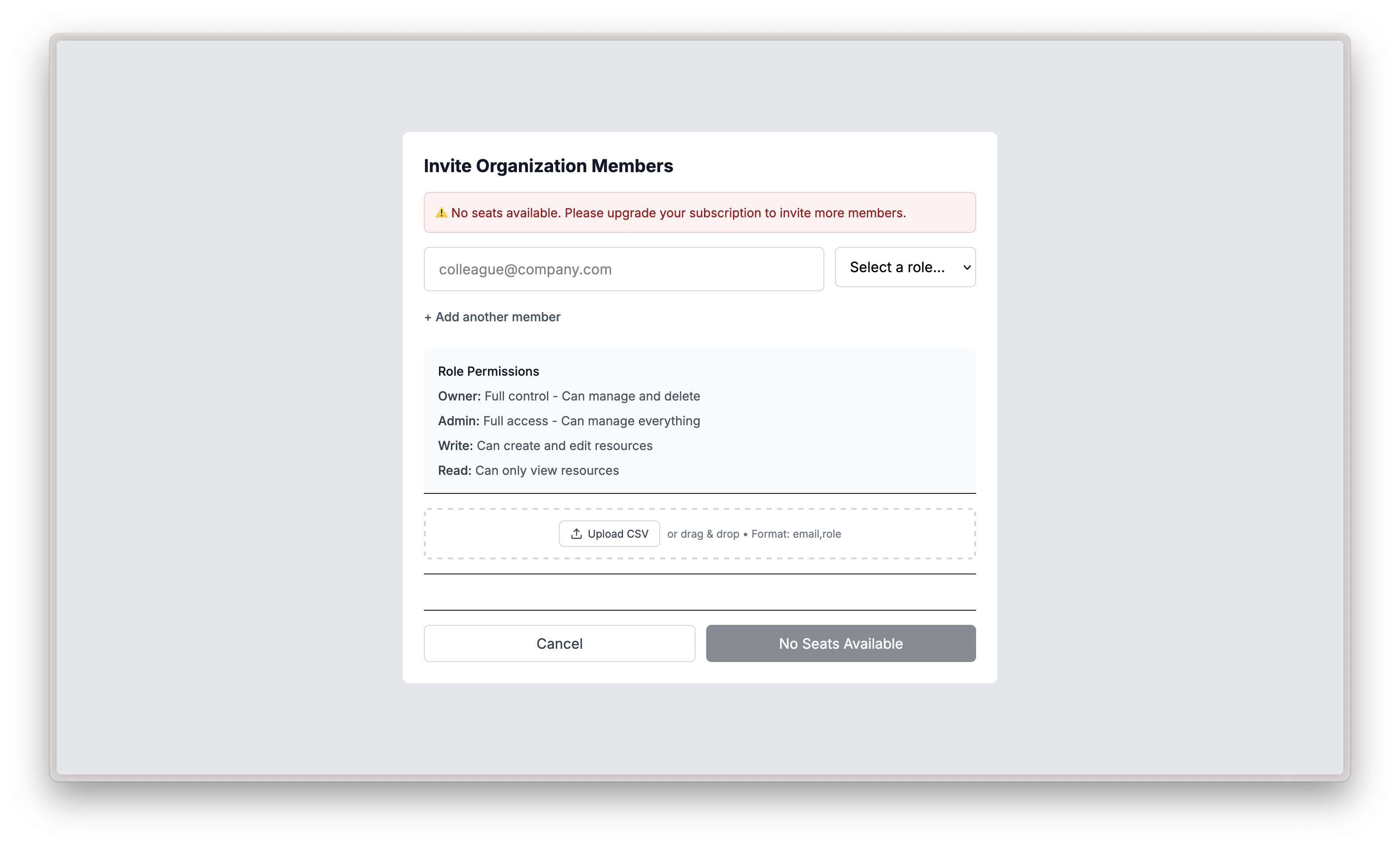
Invite members modal showing email input, role selection, and CSV upload option
How to Open the Invite Modal
Go to [portal.pieces.app](https://portal.pieces.app) and sign in. Select your organization from the *sidebar* dropdown if needed.
Click the `Invite people` button in the top right corner. The button is available from any tab (Home, Members, Models, Long Term Memory, Billing, Settings). The invite modal opens.
Understanding Member Roles
Before inviting members, understand the different roles available and what each role can do within your organization.

Member roles overview showing Owner, Admin, Write, and Read role descriptions
Each role has different permissions:
- Owner - Full control including organization deletion
- Admin - Full access except organization deletion
- Write - Can create and edit resources
- Read - View-only access
Invitation Methods
Invite team members using different methods depending on your needs and team size.
Inviting a Single Member
Go to [portal.pieces.app](https://portal.pieces.app), sign in, and select your organization. Click `Invite people` in the top right corner (available from any tab).
In the *Invite Organization Members* modal, enter the email address of the person you want to invite in the *email input* field.
Click the `Select a role...` *dropdown* next to the email field and choose the appropriate role (Owner, Admin, Write, or Read).
Click the `Send Invites & Finish` button (or `Send Invitations` if available) to send the invitation. The member will receive an email with instructions to join.
Inviting Multiple Members
Go to [portal.pieces.app](https://portal.pieces.app), sign in, and select your organization. Click `Invite people` in the top right corner (available from any tab).
Enter the email address and select a role for the first member.
Click the `+ Add another member` link below the first member's information.
Repeat the process to add email addresses and roles for each additional member you want to invite.
Once all members are added, click `Send Invites & Finish` to send invitations to all members at once.
Bulk Inviting via CSV
Go to [portal.pieces.app](https://portal.pieces.app), sign in, and select your organization. Click `Invite people` in the top right corner (available from any tab).
Create a CSV file with the format: `email,role` (one member per line). For example:
```
john@example.com,Admin
jane@example.com,Write
bob@example.com,Read
```
In the *invite* modal, find the *Upload CSV* section. Click the `Upload CSV` button or drag and drop your CSV file into the *upload* area.
Review the imported members and their roles, then click `Send Invites & Finish` to send all invitations.
Understanding Seat Limitations
Your organization subscription includes a specific number of seats that determine how many active members you can have. Each active member uses one seat, and you cannot invite more members than you have available seats.
You can only invite members if you have available seats in your subscription. If you see a "No seats available" warning, you'll need to upgrade your subscription or remove inactive members before inviting new ones.
Checking Seat Availability
Before inviting members, check your current seat usage:
From your organization's `Home` page, click `Members` in the *sidebar* navigation.
At the top of the *Members* page, you'll see the *Seat Usage* card showing how many seats are used out of your total subscription (e.g., "1 of 1 seats used").
If you need more seats, navigate to the *Billing* tab to increase your seat count. You can also remove inactive members to free up seats.
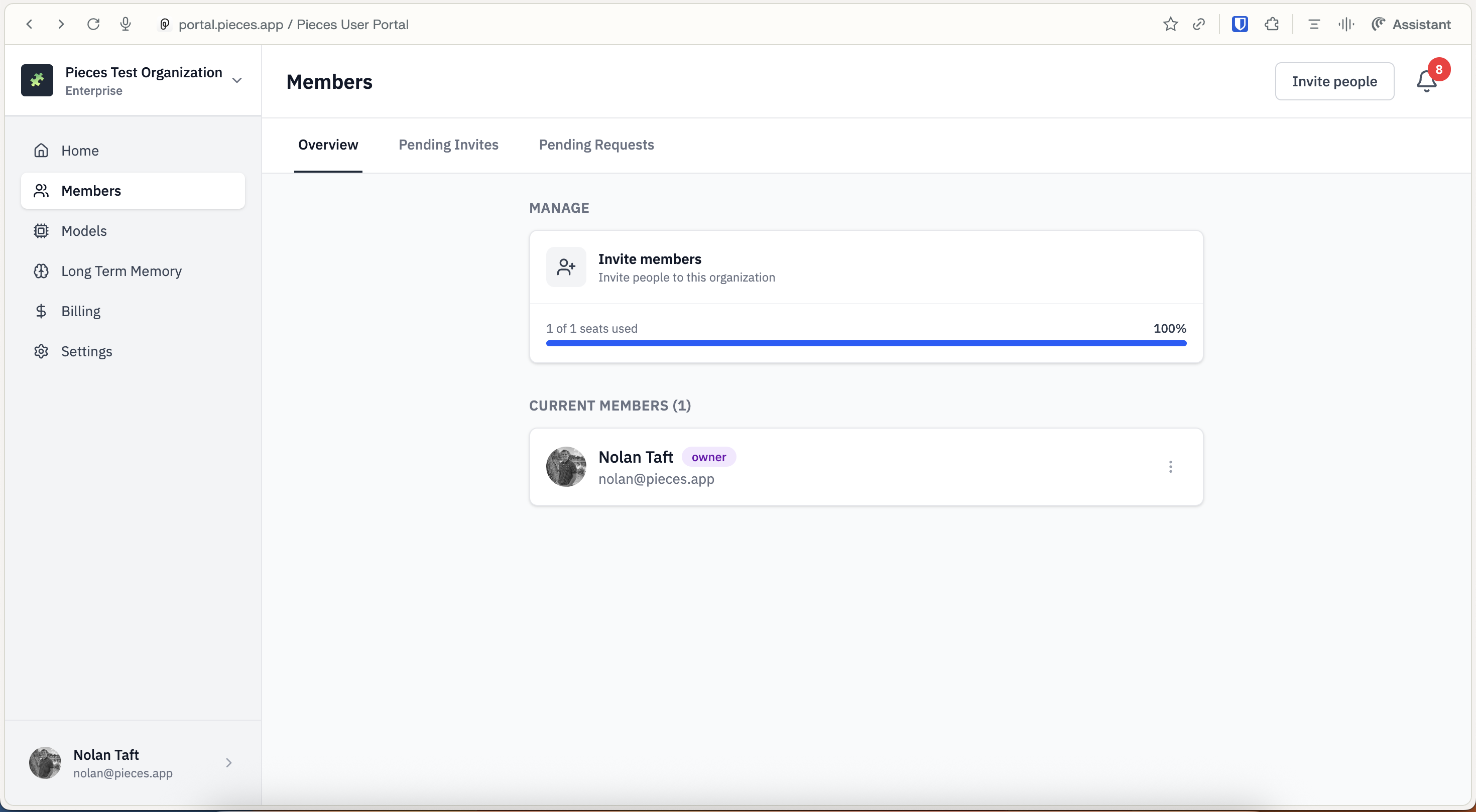
Members tab showing seat usage card with current usage and total seats
Seat Management
Understanding how seats work helps you manage your organization effectively:
- Seat Usage - View current seat usage in the Members tab
- Upgrading Seats - Increase seats from the Billing tab when you need to invite more members
- Minimum Seats - You must maintain at least one seat based on your number of active members
- Available Seats - Available seats = Total seats - Active members
Next Steps
Now that you know how to invite members, learn about managing members to update roles and handle member-related tasks, or explore billing to manage your subscription and seat count.