Teams Settings
The Teams settings tab provides a centralized view of all teams within your organization. From here, you can see team member counts and delete teams that are no longer needed.
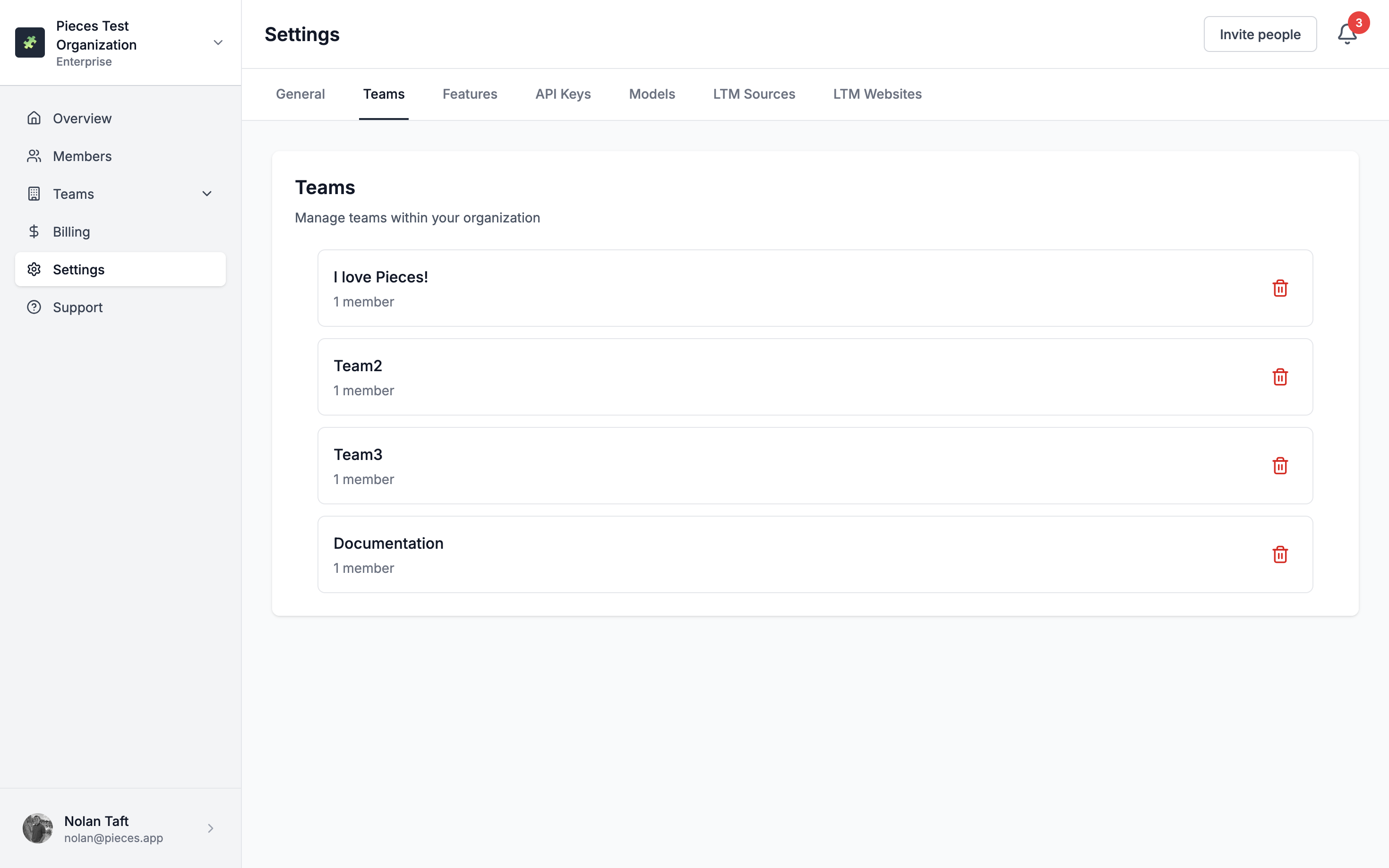
Teams settings tab showing list of teams with member counts and delete options
Accessing Teams Settings
Navigate to the Teams settings tab to view and manage all organization teams. This provides a centralized view of all teams in your organization.
Viewing Teams
See all teams in your organization along with their member counts.
Deleting Teams
Remove teams that are no longer needed from your organization.
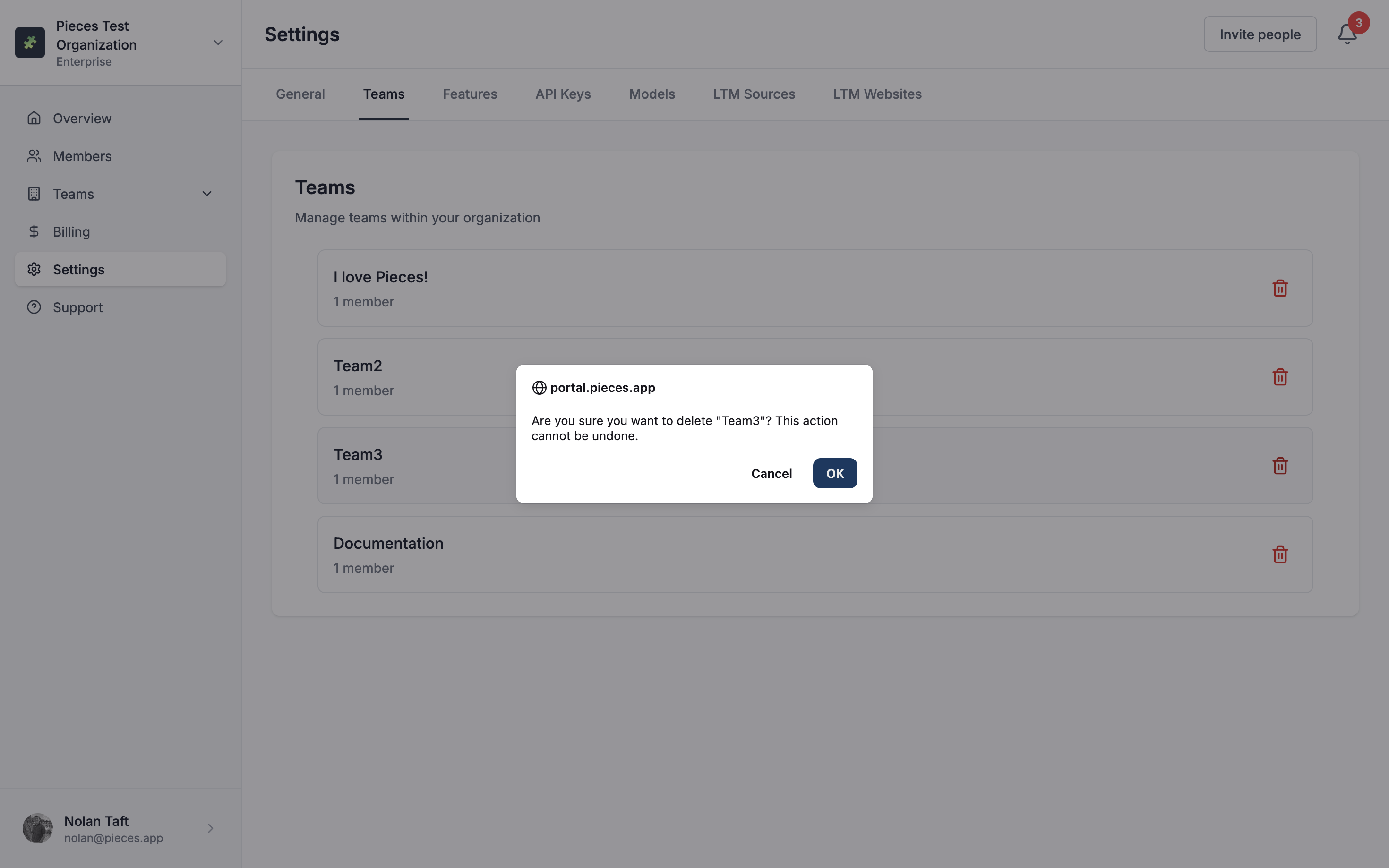
Team deletion interface showing delete button and confirmation
Next Steps
Now that you understand teams settings, learn about managing teams to create and organize teams, or explore Features Settings to configure team-wide features.